Web Development 2026: क्या 2026 में Web Development सीखना सही है?

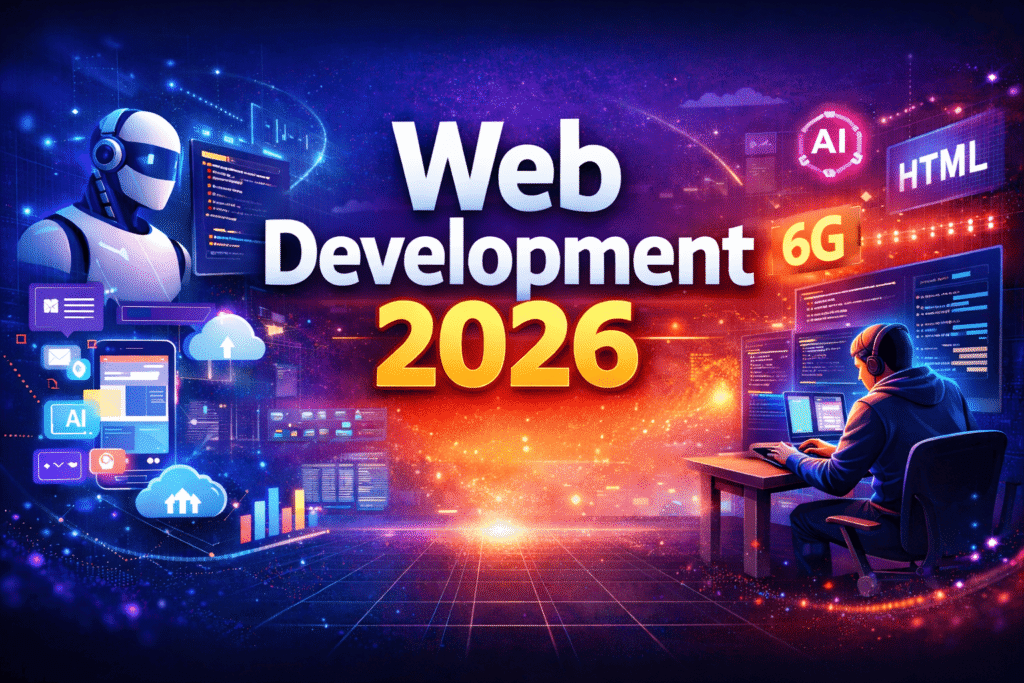
Web Development 2026

आज के digital time में सबसे common सवाल यही है:

“क्या 2026 में web development सीखना सही decision है?”

AI, automation और no-code tools के कारण लोग confuse हैं।
इस article में आपको clear, practical और future-proof answer मिलेगा।

Web Development 2026 में Dead है या Upgrade?

Web development dead नहीं है, बल्कि smart बन चुका है।

पहले (Old Time)

  • Simple websites
  • Static pages
  • Normal blogs

अब (2026 Reality)

  • SaaS platforms
  • AI-based tools
  • Dashboards
  • Admin panels
  • Web apps
  • Headless CMS
  • API-driven systems

हर modern product की base web technology ही है।


AI Web Developers को Replace करेगा?

Simple answer: नहीं।

AI क्या कर सकता है?

  • Code suggest करना
  • Bug fix में help
  • Speed बढ़ाना

AI क्या नहीं कर सकता?

  • Client requirements समझना
  • Business logic design करना
  • UX / UI decisions लेना
  • Complete system architecture बनाना

2026 में AI + Developer = Powerful combo

जो developer AI tools use करना सीख गया, वही आगे बढ़ेगा।


2026 में Web Development Career Options

1. Job Opportunities

  • Frontend Developer
  • Backend Developer
  • Full Stack Developer
  • WordPress / CMS Expert

2. Freelancing

  • Website development
  • Custom features
  • Speed optimization
  • Bug fixing
  • Maintenance

3. Business & Startup

  • SaaS products
  • Online tools
  • Learning platforms
  • News portals
  • Affiliate websites

4. Content & Teaching

  • Blogging
  • YouTube
  • Paid courses
  • Hindi tutorials

theeasymaster.com जैसे platforms के लिए web dev long-term asset है।


2026 के लिए Complete Web Development Roadmap

Step 1: Core Basics (Must)

  • HTML5
  • CSS3 (Flexbox, Grid)
  • JavaScript (ES6+)

सिर्फ HTML-CSS सीखकर रुकना 2026 में गलती है।


Step 2: Frontend Development

  • React.js
  • Next.js (SEO + performance)
  • Tailwind CSS / Bootstrap

Next.js 2026 में highly demanded framework है।


Step 3: Backend Development (One Choice)

Option A

  • Node.js + Express

Option B

  • PHP + Laravel (WordPress users के लिए best)

Step 4: Database & Authentication

  • MySQL / MongoDB
  • Login / Signup
  • JWT / Session auth
  • Role-based access

Step 5: Tools & Deployment

  • Git & GitHub
  • REST APIs
  • Vercel / Netlify
  • VPS Hosting
  • CI/CD basics

Step 6: AI Integration (2026 Must)

  • ChatGPT API
  • AI content tools
  • AI search & filters
  • Automation scripts

AI-aware developer की value 2x होती है।


Web Development कब नहीं सीखना चाहिए?

अगर आप:

  • Shortcut ढूंढ रहे हैं
  • बिना practice job चाहते हैं
  • Consistency नहीं रखते

Web development आपके लिए right choice नहीं है।


Web Development किसके लिए Best है?

  • Students
  • Career switchers
  • Freelancers
  • Business owners
  • Content creators
  • Hindi learners

अगर आप:

  • Logical thinking कर सकते हैं
  • Daily 1–2 घंटे practice कर सकते हैं
  • New tech सीखने को ready हैं

2026 में web development best career option है।


Salary & Earning Potential (India – 2026)

LevelIncome
Fresher₹25,000 – ₹45,000
2–3 Years₹70,000 – ₹1.5L
Freelancer₹50k – ₹3L+
SaaS OwnerUnlimited 🚀

Final Verdict (2026)

हाँ, 2026 में web development सीखना बिल्कुल सही है
लेकिन modern stack + AI + real projects के साथ
Outdated syllabus और shortcut से नहीं


TheEasyMaster Recommendation

अगर आप serious हैं:

  • Basics strong करें
  • Projects बनाएं
  • AI tools को enemy नहीं, assistant बनाएं
  • Hindi में सीखें, global clients के लिए काम करें

Web development सिर्फ job नहीं, long-term digital career है।


Conclusion

Web development खत्म नहीं हो रहा,
खत्म हो रही है पुरानी learning approach।

theeasymaster.com पर ऐसे ही practical, future-ready guides पढ़ते रहें।

How to Integrate Apple Pay with Braintree in Node.js

If you want to accept Apple Pay payments on your website using Braintree, you need a secure HTTPS server and a simple backend. In this guide, I’ll show you how to build it step-by-step with Node.js, Express, and Braintree — including how to generate a local SSL certificate for HTTPS.

Requirements

  • Node.js & npm installed
  • Braintree sandbox account
  • macOS, Linux, or Windows with mkcert installed (or OpenSSL)

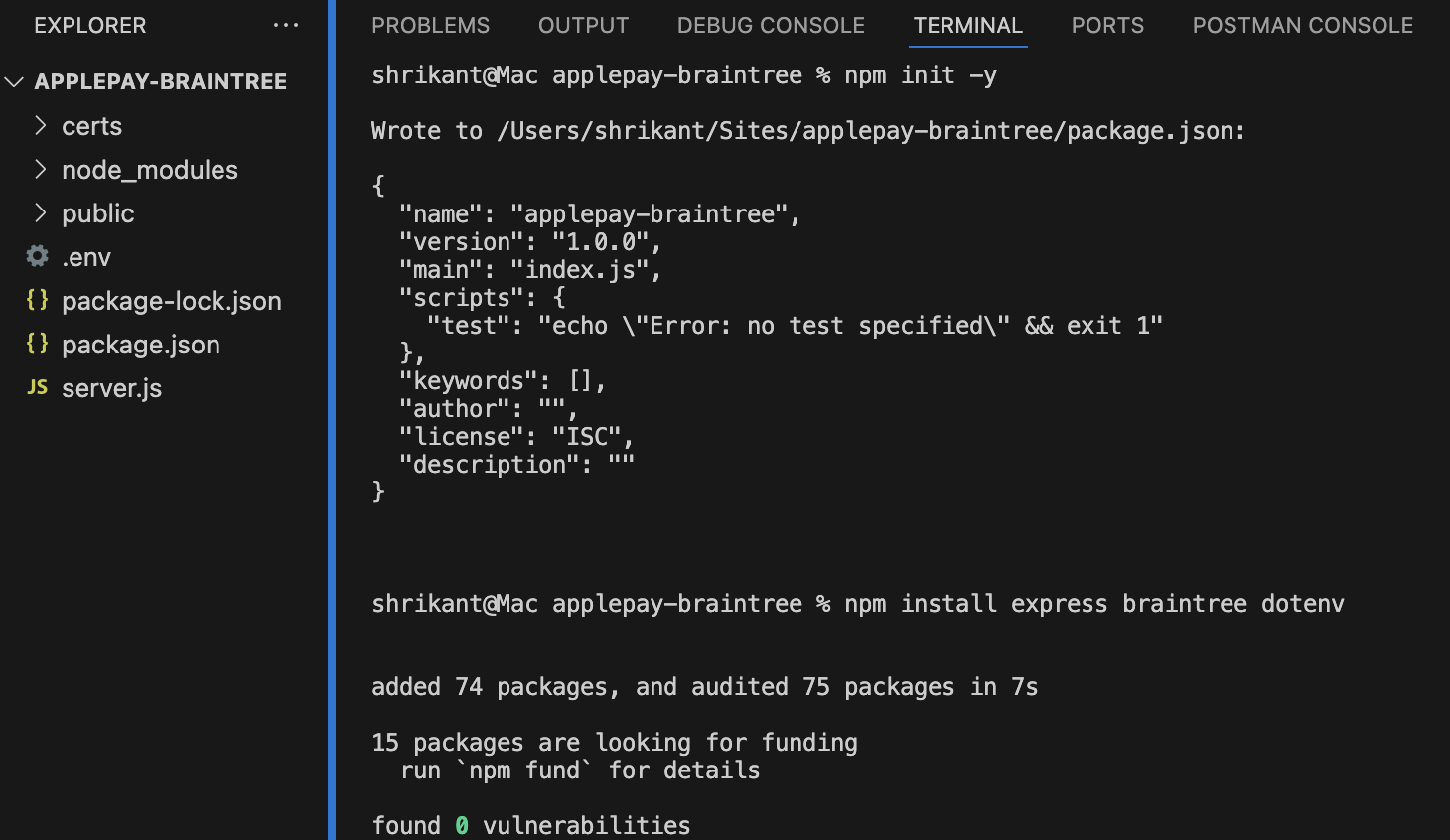
Step 1: Create Project Structure

mkdir applepay-braintree
cd applepay-braintree
npm init -y
npm install express braintree dotenv

Structure

applepay-braintree/
 ├─ certs/
 ├─ public/
 │   └─ index.html
 ├─ .env
 ├─ server.js
 ├─ package.json
Project structure

Step 2: Get Braintree Sandbox Keys

  • Sign in to your Braintree Sandbox.
  • Get your Merchant ID, Public Key, and Private Key.
  • Add them to a .env file:
BRAINTREE_MERCHANT_ID=your_merchant_id
BRAINTREE_PUBLIC_KEY=your_public_key
BRAINTREE_PRIVATE_KEY=your_private_key

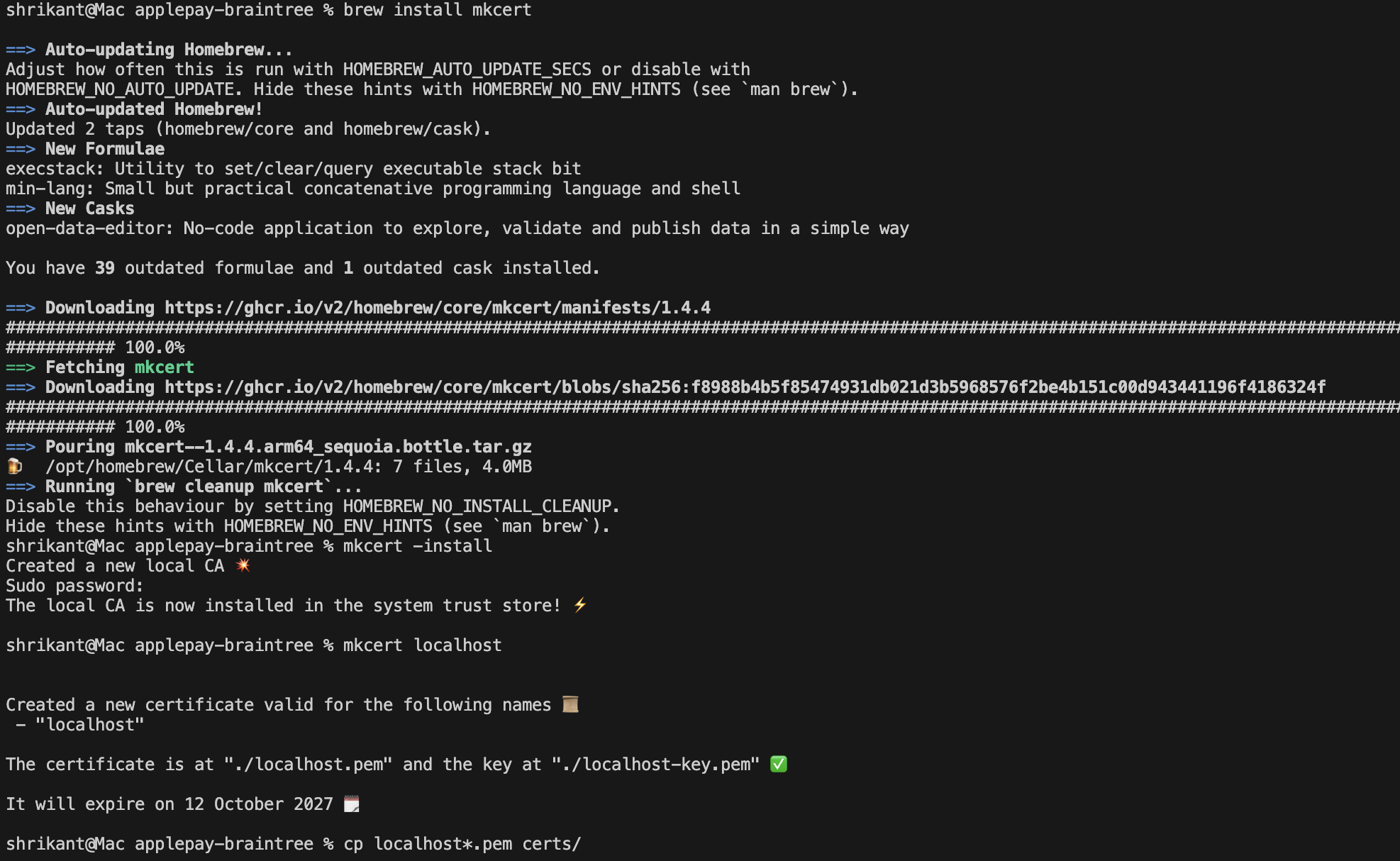
Step 3: Generate Local SSL Certificates

Use mkcert to create trusted local certs.

brew install mkcert
mkcert -install
mkcert localhost
cp localhost*.pem certs/

Copy the generated .pem files to a certs/ folder:

certs/
 ├─ cert.pem   (rename the .pem file)
 ├─ key.pem    (rename the -key.pem file)
install SSL (certs)

Step 4: Create server.js

Here’s your full Node.js server with HTTPS, Braintree, and Express:

require('dotenv').config();
const express = require('express');
const braintree = require('braintree');
const path = require('path');
const fs = require('fs');
const https = require('https');

const app = express();
const port = 3000;

// HTTPS options - make sure these files exist!
const options = {
  key: fs.readFileSync('./certs/localhost-key.pem'),
  cert: fs.readFileSync('./certs/localhost.pem')
};

// Braintree Gateway with your real environment vars
const gateway = new braintree.BraintreeGateway({
  environment: braintree.Environment.Sandbox,
  merchantId: process.env.BRAINTREE_MERCHANT_ID,
  publicKey: process.env.BRAINTREE_PUBLIC_KEY,
  privateKey: process.env.BRAINTREE_PRIVATE_KEY
});

// Middleware for static files + JSON body
app.use(express.static('public'));
app.use(express.json());

// Serve HTML page
app.get('/', (req, res) => {
  res.sendFile(path.join(__dirname, 'public/index.html'));
});

// Generate client token
app.get('/client_token', async (req, res) => {
  try {
    const response = await gateway.clientToken.generate({});
    res.send(response.clientToken); // CORRECT — send the generated token
  } catch (err) {
    console.error('Failed to generate client token:', err);
    res.status(500).send('Could not generate client token');
  }
});

// Handle payment
app.post('/checkout', async (req, res) => {
  const nonceFromClient = req.body.paymentMethodNonce;
  const amount = req.body.amount; // Get amount dynamically from client

  if (!amount) {
    return res.status(400).send({ success: false, message: 'Missing amount' });
  }

  const saleRequest = {
    amount: amount,
    paymentMethodNonce: nonceFromClient,
    options: { submitForSettlement: true }
  };

  try {
    const result = await gateway.transaction.sale(saleRequest);

    if (result.success) {
      res.send({ success: true, transactionId: result.transaction.id });
    } else {
      console.error('Transaction failed:', result);
      res.send({ success: false, message: result.message });
    }
  } catch (err) {
    console.error('Error during checkout:', err);
    res.status(500).send({ success: false, message: 'Server error' });
  }
});

// Start HTTPS server
https.createServer(options, app).listen(port, () => {
  console.log(`HTTPS server running at https://localhost:${port}`);
});

Step 5: Create public/index.html

Add a simple page with the Braintree Apple Pay button.

<!DOCTYPE html>
<html lang="en">
<head>
  <meta charset="UTF-8" />
  <title>Apple Pay with Braintree - Dynamic Product</title>
  <script src="https://js.braintreegateway.com/web/3.92.2/js/client.min.js"></script>
  <script src="https://js.braintreegateway.com/web/3.92.2/js/apple-pay.min.js"></script>
  <style>
    body {
      font-family: sans-serif;
      text-align: center;
      padding: 50px;
    }
    .product-card {
      max-width: 300px;
      margin: 0 auto 30px auto;
      border: 1px solid #ccc;
      border-radius: 8px;
      padding: 16px;
      box-shadow: 0 2px 5px rgba(0,0,0,0.1);
    }
    .product-card img {
      max-width: 100%;
      height: auto;
    }
    #apple-pay-button {
      width: 250px;
      margin: 0 auto;
    }
    #result {
      margin-top: 20px;
      font-weight: bold;
    }
  </style>
</head>
<body>

  <h1>Apple Pay Checkout</h1>

  <!-- Product Card -->
  <div class="product-card" data-price="19.99">
    <img src="https://fastly.picsum.photos/id/4/5000/3333.jpg?hmac=ghf06FdmgiD0-G4c9DdNM8RnBIN7BO0-ZGEw47khHP4" alt="Product Image">
    <h2 class="product-title">Sample Product</h2>
    <p class="product-description">This is a simple description of the product you’re buying.</p>
    <p class="product-price">$19.99</p>
  </div>

  <!-- Apple Pay Button -->
  <div id="apple-pay-button"></div>

  <div id="result"></div>

  <!-- JS Integration -->
  <script>
    fetch('/client_token')
      .then(response => response.text())
      .then(clientToken => {
        braintree.client.create({
          authorization: clientToken
        }, function (clientErr, clientInstance) {
          if (clientErr) {
            console.error(clientErr);
            return;
          }

          braintree.applePay.create({
            client: clientInstance
          }, function (applePayErr, applePayInstance) {
            if (applePayErr) {
              console.error(applePayErr);
              return;
            }

            if (!window.ApplePaySession || !ApplePaySession.canMakePayments()) {
              document.getElementById('result').innerText = 'Apple Pay is not available.';
              return;
            }

            const button = document.createElement('button');
            button.className = 'apple-pay-button';
            button.style.cssText = 'appearance: -apple-pay-button; -webkit-appearance: -apple-pay-button; width: 100%; height: 44px;';

            button.onclick = function () {
              // Get product price dynamically
              const productCard = document.querySelector('.product-card');
              const totalAmount = productCard.getAttribute('data-price') || '0.00';

              const paymentRequest = applePayInstance.createPaymentRequest({
                total: { label: 'Your Company', amount: totalAmount }
              });

              const session = new ApplePaySession(3, paymentRequest);

              session.onvalidatemerchant = function (event) {
                applePayInstance.performValidation({
                  validationURL: event.validationURL,
                  displayName: 'Your Company'
                }, function (err, merchantSession) {
                  if (err) {
                    console.error(err);
                    session.abort();
                    return;
                  }
                  session.completeMerchantValidation(merchantSession);
                });
              };

              session.onpaymentauthorized = function (event) {
                applePayInstance.tokenize({
                  token: event.payment.token
                }, function (err, payload) {
                  if (err) {
                    console.error(err);
                    session.completePayment(ApplePaySession.STATUS_FAILURE);
                    return;
                  }

                  fetch('/checkout', {
                    method: 'POST',
                    headers: { 'Content-Type': 'application/json' },
                    body: JSON.stringify({ paymentMethodNonce: payload.nonce, amount: totalAmount })
                  })
                  .then(response => response.json())
                  .then(result => {
                    if (result.success) {
                      session.completePayment(ApplePaySession.STATUS_SUCCESS);
                      document.getElementById('result').innerText = 'Payment successful! Transaction ID: ' + result.transactionId;
                    } else {
                      session.completePayment(ApplePaySession.STATUS_FAILURE);
                      document.getElementById('result').innerText = 'Payment failed: ' + result.message;
                    }
                  });
                });
              };

              session.begin();
            };

            document.getElementById('apple-pay-button').appendChild(button);
          });
        });
      });
  </script>

</body>
</html>

Step 6: Run your server

node server.js

Open https://localhost:3000 in Safari on macOS/iOS (Apple Pay only works there).
You’ll see the Apple Pay button and a success message when done!

GitHub Repo

You did it!

  • You now have a secure local Node.js project with Apple Pay + Braintree.
  • HTTPS is handled with mkcert for local trust.
  • You’re ready to deploy with a real SSL for production.

Flutter Widgets Tutorial: From Basics to Advanced

Flutter basic

Introduction

Flutter is a modern UI toolkit for building natively compiled apps across mobile, web, and desktop. In this tutorial, we’ll cover some of the most fundamental Flutter building blocks: StatelessWidget, StatefulWidget, MaterialApp, Scaffold, and super.key. Then, we’ll move on to more advanced concepts.

1. StatelessWidget — Fixed UI Components

StatelessWidget is used when your widget’s UI doesn’t change dynamically after it’s rendered.

import 'package:flutter/material.dart';

class MyStaticText extends StatelessWidget {
  const MyStaticText({super.key});

  @override
  Widget build(BuildContext context) {
    return Text('I am static and do not change!');
  }
}

When to use:

Displaying fixed texts, logos, buttons (without interactivity).

2. MaterialApp — Starting Point of Your App

Every Flutter app usually begins with a MaterialApp.

void main() {
  runApp(const MyApp());
}

class MyApp extends StatelessWidget {
  const MyApp({super.key});

  @override
  Widget build(BuildContext context) {
    return MaterialApp(
      title: 'My Flutter App',
      theme: ThemeData(
        colorScheme: ColorScheme.fromSeed(seedColor: Colors.teal),
      ),
      home: const HomeScreen(),
    );
  }
}

Key Features:

  • Sets global theme.
  • Defines home screen.
  • Provides routing and localization.

3. super.key — Widget Identity

super.key is used to pass the key from child to the parent widget class. It helps Flutter detect changes and reuse widgets efficiently.

class MyWidget extends StatelessWidget {
  const MyWidget({super.key});
}

It is best practice to always include super.key in constructors.

4. StatefulWidget — For Dynamic & Interactive UI

Use StatefulWidget when the UI needs to change over time—like when clicking a button or toggling a switch.

class CounterWidget extends StatefulWidget {
  const CounterWidget({super.key});

  @override
  State<CounterWidget> createState() => _CounterWidgetState();
}

class _CounterWidgetState extends State<CounterWidget> {
  int counter = 0;

  void increment() {
    setState(() {
      counter++;
    });
  }

  @override
  Widget build(BuildContext context) {
    return Column(
      children: [
        Text('Counter: $counter'),
        ElevatedButton(
          onPressed: increment,
          child: const Text('Increment'),
        ),
      ],
    );
  }
}

5. Scaffold — Your App Layout Container
Scaffold provides a default app layout structure. It includes:

BottomNavigationBar

AppBar

Body

Drawer

FloatingActionButton

Scaffold(
  appBar: AppBar(title: const Text("My App")),
  body: const Center(child: Text("Hello, Flutter!")),
  floatingActionButton: FloatingActionButton(
    onPressed: () {},
    child: const Icon(Icons.add),
  ),
);

Going Beyond: Advanced Widget Concepts

Widget Lifecycle

Understand the lifecycle methods:

  • initState()
  • dispose()
  • didUpdateWidget()

Keys (GlobalKey vs LocalKey)

Used to preserve widget state when widgets are reordered or recreated.

Navigation and Routing

Use Navigator.push() and named routes for multi-screen apps.

Provider & State Management

Use Provider, Riverpod, or Bloc for large-scale app state management.

Theme Customization

Use ThemeData and Theme.of(context) to build reusable and beautiful apps.

Conclusion

You’ve now learned:

  • The difference between Stateless and Stateful widgets.
  • How MaterialApp and Scaffold provide structure.
  • The importance of super.key for performance and rebuilds.
  • How to extend these basics with advanced concepts.

Dart Programming Tutorial for Beginners: Learn Dart from Scratch

dart programming

Dart Programming Tutorial for Beginners

Are you interested in learning Dart programming? Whether you’re planning to dive into Flutter development or simply want to learn a modern, powerful language—this Dart tutorial is the perfect starting point for beginners.

What is Dart?

Dart is an open-source, general-purpose programming language developed by Google. It is optimized for building fast, modern web and mobile apps. Dart is the language behind Flutter, Google’s popular UI toolkit for cross-platform development.

  • Easy to learn for JavaScript, Java, or C# developers
  • Used with Flutter to build Android, iOS, Web, and Desktop apps
  • Fast, expressive, and safe language
  • Strong community support

How to Install Dart?

You can install Dart in two ways:

1. Using Flutter SDK (Recommended)

If you’re learning Dart for Flutter:

https://flutter.dev/docs/get-started/install

2. Install Dart SDK Directly:

Go to https://dart.dev/get-dart and follow the setup instructions for your operating system.

Your First Dart Program

Create a new Dart file and name it hello.dart:

void main() {
  print('Hello, Dart!');
}

Run it:

dart hello.dart

Output:

Hello, Dart!

Dart Basics

1. Variables

void main() {
  var name = 'Shri Kant';
  int age = 25;
  double height = 5.9;
  bool isStudent = true;

  print('$name is $age years old.');
}

2. Data Types

  • int – Integer values
  • double – Decimal values
  • String – Text
  • bool – true or false
  • List – Arrays
  • Map – Key-value pairs

3. Functions

void greet(String name) {
  print('Hello, $name!');
}

void main() {
  greet('Shri Kant');
}

4. Conditionals

void main() {
  int marks = 75;

  if (marks >= 60) {
    print('Pass');
  } else {
    print('Fail');
  }
}

5. Loops

void main() {
  for (int i = 1; i <= 5; i++) {
    print('Number: $i');
  }
}

5.1 While Loops

void main() {
  int i = 1;

  while (i <= 5) {
    print('Number: $i');
    i++;  // Increment i by 1
  }
}

6. Using Lists in Dart

Lists in Dart allow you to store multiple values in a single variable. Here’s an example:

void main() {
  List<String> fruits = ['Apple', 'Banana', 'Orange'];

  for (var fruit in fruits) {
    print(fruit);
  }
}

Explanation:

  • We create a List called fruits to store strings.
  • The for loop iterates over each item in the list and prints it.

Conclusion

Dart is a beginner-friendly yet powerful language for modern app development. Whether you’re coding for web, mobile, or desktop, Dart provides the tools and simplicity to bring your ideas to life.

React Native Expo Tutorial for Beginners: Build Your First Mobile App Fast!

React Native project

Introduction

Want to create a mobile app using JavaScript? You’re in the right place. In this tutorial, we’ll walk you through how to build your first mobile app using React Native and Expo — no complex setup required!

Expo makes it super easy for beginners to start building cross-platform apps. You don’t need Android Studio or Xcode to get started — just a computer, a smartphone, and an internet connection.

What You Will Learn

  • What is React Native and Expo
  • How to set up the Expo environment
  • Create your first Expo app
  • Run the app on Android and iOS
  • Modify and test your code

Prerequisites

Before we start, make sure you have:

  • Node.js installed (Download here)
  • A code editor (we recommend VS Code)
  • A smartphone with the Expo Go app (available on Play Store and App Store)

Step 1: Install Expo CLI

Open your terminal or command prompt and run:

npm install -g expo-cli

This installs the Expo command-line tool globally on your system.

Step 2: Create a New App

Now create your first app:

expo init MyFirstApp

Choose the blank template (or a template with navigation if you want more features).

Move into your project folder:

cd MyFirstApp

Step 3: Start the Development Server

To start your app:

npm start

or

expo start

This will open a new tab in your browser with a QR code.

Step 4: Run the App on Your Device

  1. Open the Expo Go app on your phone.
  2. Scan the QR code from the terminal/browser.
  3. Your app will open instantly!
  4. No need for emulators or complex setup. That’s the beauty of Expo!

Step 5: Edit Your App

Open the App.js file in your code editor. You’ll see something like this:

import React from 'react';
import { Text, View } from 'react-native';

export default function App() {
  return (
    <View style={{ flex: 1, justifyContent: 'center', alignItems: 'center' }}>
      <Text>Hello, world!</Text>
    </View>
  );
}

Try changing the text to:

<Text>Welcome to My First App with Expo!</Text>

Save the file — your app will reload automatically on your phone!

Add a Button

Let’s make it more interactive. Update App.js like this:

import React, { useState } from 'react';
import { Text, View, Button } from 'react-native';

export default function App() {
  const [count, setCount] = useState(0);

  return (
    <View style={{ flex: 1, justifyContent: 'center', alignItems: 'center' }}>
      <Text>You clicked {count} times</Text>
      <Button title="Click me" onPress={() => setCount(count + 1)} />
    </View>
  );
}

Now you’ve got a clickable counter app!

Summary

You just built your first mobile app using React Native and Expo. Here’s what we covered:

Installed Expo CLI
Created a new project
Ran the app on a real device
Edited and tested your first component

React Native Expo Component List with Examples

React Native Expo Component List

React Native Expo Component List with Examples

React Native Expo provides a rich set of built-in components and APIs to help developers build cross-platform mobile applications efficiently. In this guide, we will explore the React Native Expo component list with examples for UI elements, animations, navigation, and media playback.

1. Basic UI Components React Native Expo Component List

View (Container for UI elements)

import { View, Text } from 'react-native';

export default function App() {
  return (
    <View style={{ flex: 1, justifyContent: 'center', alignItems: 'center' }}>
      <Text>Hello, World!</Text>
    </View>
  );
}

Text (Display text)

import { Text } from 'react-native';

export default function App() {
  return <Text style={{ fontSize: 20, fontWeight: 'bold' }}>Hello Expo!</Text>;
}

Image (Display an image)

import { Image } from 'react-native';

export default function App() {
  return (
    <Image 
      source={{ uri: 'https://via.placeholder.com/150' }} 
      style={{ width: 150, height: 150 }}
    />
  );
}

Button (Basic clickable button)

import { Button, Alert } from 'react-native';

export default function App() {
  return (
    <Button title="Click Me" onPress={() => Alert.alert('Button Clicked!')} />
  );
}

TextInput (User Input Field)

import { useState } from 'react';
import { TextInput, View, Text } from 'react-native';

export default function App() {
  const [text, setText] = useState('');

  return (
    <View style={{ padding: 20 }}>
      <TextInput
        placeholder="Type here..."
        onChangeText={setText}
        value={text}
        style={{ borderBottomWidth: 1, height: 40 }}
      />
      <Text>You typed: {text}</Text>
    </View>
  );
}

2. List & Scrolling Components React Native Expo Component List

ScrollView (Scrollable container)

import { ScrollView, Text } from 'react-native';

export default function App() {
  return (
    <ScrollView>
      {[...Array(20).keys()].map((i) => (
        <Text key={i} style={{ padding: 10 }}>Item {i + 1}</Text>
      ))}
    </ScrollView>
  );
}

FlatList (Optimized list for large data)

import { FlatList, Text, View } from 'react-native';

const DATA = [{ id: '1', title: 'Item 1' }, { id: '2', title: 'Item 2' }];

export default function App() {
  return (
    <FlatList
      data={DATA}
      keyExtractor={(item) => item.id}
      renderItem={({ item }) => (
        <View style={{ padding: 10 }}>
          <Text>{item.title}</Text>
        </View>
      )}
    />
  );
}

3. Expo-Specific Components React Native Expo Component List

import { Camera } from 'expo-camera';
import { useState, useEffect } from 'react';
import { View, Button } from 'react-native';

export default function App() {
  const [hasPermission, setHasPermission] = useState(null);

  useEffect(() => {
    (async () => {
      const { status } = await Camera.requestCameraPermissionsAsync();
      setHasPermission(status === 'granted');
    })();
  }, []);

  return (
    <View style={{ flex: 1 }}>
      {hasPermission ? <Camera style={{ flex: 1 }} /> : <Button title="Request Permission" />}
    </View>
  );
}

ImagePicker (Select images from gallery)

import * as ImagePicker from 'expo-image-picker';
import { useState } from 'react';
import { Button, Image, View } from 'react-native';

export default function App() {
  const [image, setImage] = useState(null);

  const pickImage = async () => {
    let result = await ImagePicker.launchImageLibraryAsync();
    if (!result.canceled) {
      setImage(result.assets[0].uri);
    }
  };

  return (
    <View>
      <Button title="Pick an image" onPress={pickImage} />
      {image && <Image source={{ uri: image }} style={{ width: 100, height: 100 }} />}
    </View>
  );
}

Location (Get user location)

import * as Location from 'expo-location';
import { useState, useEffect } from 'react';
import { View, Text } from 'react-native';

export default function App() {
  const [location, setLocation] = useState(null);

  useEffect(() => {
    (async () => {
      let { status } = await Location.requestForegroundPermissionsAsync();
      if (status === 'granted') {
        let loc = await Location.getCurrentPositionAsync({});
        setLocation(loc);
      }
    })();
  }, []);

  return <Text>Location: {location ? JSON.stringify(location) : 'Fetching...'}</Text>;
}

4. Navigation Components (React Navigation)

Stack Navigation

import { NavigationContainer } from '@react-navigation/native';
import { createStackNavigator } from '@react-navigation/stack';
import { View, Button, Text } from 'react-native';

const Stack = createStackNavigator();

function HomeScreen({ navigation }) {
  return (
    <View>
      <Text>Home Screen</Text>
      <Button title="Go to Details" onPress={() => navigation.navigate('Details')} />
    </View>
  );
}

function DetailsScreen() {
  return <Text>Details Screen</Text>;
}

export default function App() {
  return (
    <NavigationContainer>
      <Stack.Navigator>
        <Stack.Screen name="Home" component={HomeScreen} />
        <Stack.Screen name="Details" component={DetailsScreen} />
      </Stack.Navigator>
    </NavigationContainer>
  );
}

5. Gesture & Animation React Native Expo Component List

TouchableOpacity (Button with Opacity effect)

import { TouchableOpacity, Text } from 'react-native';

export default function App() {
  return (
    <TouchableOpacity onPress={() => alert('Pressed!')} style={{ padding: 10, backgroundColor: 'blue' }}>
      <Text style={{ color: 'white' }}>Press Me</Text>
    </TouchableOpacity>
  );
}

Reanimated (Smooth Animations)

import Animated, { useSharedValue, withSpring, useAnimatedStyle } from 'react-native-reanimated';
import { Button, View } from 'react-native';

export default function App() {
  const offset = useSharedValue(0);

  const animatedStyle = useAnimatedStyle(() => ({
    transform: [{ translateX: withSpring(offset.value * 100) }],
  }));

  return (
    <View>
      <Animated.View style={[{ width: 50, height: 50, backgroundColor: 'red' }, animatedStyle]} />
      <Button title="Move" onPress={() => (offset.value = Math.random())} />
    </View>
  );
}

6. Advanced UI Components

Custom Modal with Animation

import { useState } from 'react';
import { Modal, View, Text, Button, StyleSheet } from 'react-native';

export default function App() {
  const [visible, setVisible] = useState(false);

  return (
    <View style={styles.container}>
      <Button title="Show Modal" onPress={() => setVisible(true)} />
      <Modal animationType="slide" transparent visible={visible}>
        <View style={styles.modalContainer}>
          <View style={styles.modalContent}>
            <Text>This is a modal</Text>
            <Button title="Close" onPress={() => setVisible(false)} />
          </View>
        </View>
      </Modal>
    </View>
  );
}

const styles = StyleSheet.create({
  container: { flex: 1, justifyContent: 'center', alignItems: 'center' },
  modalContainer: { flex: 1, justifyContent: 'center', alignItems: 'center', backgroundColor: 'rgba(0,0,0,0.5)' },
  modalContent: { backgroundColor: 'white', padding: 20, borderRadius: 10 },
});

Collapsible Panel (Using react-native-reanimated)

import { useState } from 'react';
import { View, Button, Text } from 'react-native';
import Animated, { useSharedValue, withSpring, useAnimatedStyle } from 'react-native-reanimated';

export default function App() {
  const [isOpen, setIsOpen] = useState(false);
  const height = useSharedValue(0);

  const animatedStyle = useAnimatedStyle(() => ({
    height: withSpring(isOpen ? 100 : 0),
  }));

  return (
    <View style={{ padding: 20 }}>
      <Button title="Toggle Panel" onPress={() => setIsOpen(!isOpen)} />
      <Animated.View style={[{ backgroundColor: 'lightblue', overflow: 'hidden' }, animatedStyle]}>
        <Text style={{ padding: 10 }}>This is a collapsible panel!</Text>
      </Animated.View>
    </View>
  );
}

7. Advanced List & Scroll Components

Masonry List (Grid Layout)

import MasonryList from '@react-native-seoul/masonry-list';
import { View, Image, Text } from 'react-native';

const DATA = Array(10).fill().map((_, i) => ({ id: i.toString(), uri: 'https://via.placeholder.com/150' }));

export default function App() {
  return (
    <MasonryList
      data={DATA}
      keyExtractor={(item) => item.id}
      numColumns={2}
      renderItem={({ item }) => (
        <View style={{ margin: 5 }}>
          <Image source={{ uri: item.uri }} style={{ width: '100%', height: 100 }} />
          <Text>Item {item.id}</Text>
        </View>
      )}
    />
  );
}

Parallax Scroll Effect

import { ScrollView, Image, Text } from 'react-native';

export default function App() {
  return (
    <ScrollView contentContainerStyle={{ alignItems: 'center' }}>
      <Image source={{ uri: 'https://via.placeholder.com/300' }} style={{ width: '100%', height: 300 }} />
      <Text style={{ fontSize: 24, margin: 20 }}>Parallax Effect Example</Text>
    </ScrollView>
  );
}

8. Advanced Navigation (Deep Linking & Tabs)

Bottom Tabs Navigation

import { createBottomTabNavigator } from '@react-navigation/bottom-tabs';
import { NavigationContainer } from '@react-navigation/native';
import { View, Text } from 'react-native';

const Tab = createBottomTabNavigator();

function HomeScreen() { return <View><Text>Home</Text></View>; }
function ProfileScreen() { return <View><Text>Profile</Text></View>; }

export default function App() {
  return (
    <NavigationContainer>
      <Tab.Navigator>
        <Tab.Screen name="Home" component={HomeScreen} />
        <Tab.Screen name="Profile" component={ProfileScreen} />
      </Tab.Navigator>
    </NavigationContainer>
  );
}

Deep Linking with Navigation

import { NavigationContainer } from '@react-navigation/native';
import { createStackNavigator } from '@react-navigation/stack';
import { View, Button, Text } from 'react-native';

const Stack = createStackNavigator();

function HomeScreen({ navigation }) {
  return (
    <View>
      <Text>Home</Text>
      <Button title="Go to Details" onPress={() => navigation.navigate('Details')} />
    </View>
  );
}

function DetailsScreen() { return <Text>Details Screen</Text>; }

const linking = { prefixes: ['myapp://'], config: { screens: { Home: 'home', Details: 'details' } } };

export default function App() {
  return (
    <NavigationContainer linking={linking}>
      <Stack.Navigator>
        <Stack.Screen name="Home" component={HomeScreen} />
        <Stack.Screen name="Details" component={DetailsScreen} />
      </Stack.Navigator>
    </NavigationContainer>
  );
}

9. Advanced Media & Device Features

Video Playback with Expo-AV

import { Video } from 'expo-av';
import { View } from 'react-native';

export default function App() {
  return (
    <View style={{ flex: 1 }}>
      <Video
        source={{ uri: 'https://www.w3schools.com/html/mov_bbb.mp4' }}
        style={{ width: '100%', height: 300 }}
        useNativeControls
        resizeMode="contain"
      />
    </View>
  );
}

Audio Recording & Playback

import { Audio } from 'expo-av';
import { useState } from 'react';
import { Button, View } from 'react-native';

export default function App() {
  const [recording, setRecording] = useState(null);
  const [sound, setSound] = useState(null);

  async function startRecording() {
    const { granted } = await Audio.requestPermissionsAsync();
    if (!granted) return;
    const { recording } = await Audio.Recording.createAsync(Audio.RECORDING_OPTIONS_PRESET_HIGH_QUALITY);
    setRecording(recording);
  }

  async function stopRecording() {
    await recording.stopAndUnloadAsync();
    const uri = recording.getURI();
    setSound(await Audio.Sound.createAsync({ uri }));
    setRecording(null);
  }

  async function playSound() {
    if (sound) await sound.sound.replayAsync();
  }

  return (
    <View>
      <Button title={recording ? "Stop Recording" : "Start Recording"} onPress={recording ? stopRecording : startRecording} />
      <Button title="Play Recording" onPress={playSound} disabled={!sound} />
    </View>
  );
}

10. Advanced Animations with Reanimated

Fade-in Animation

import Animated, { useSharedValue, useAnimatedStyle, withTiming } from 'react-native-reanimated';
import { Button, View } from 'react-native';

export default function App() {
  const opacity = useSharedValue(0);

  const animatedStyle = useAnimatedStyle(() => ({ opacity: opacity.value }));

  return (
    <View>
      <Animated.View style={[{ width: 100, height: 100, backgroundColor: 'blue' }, animatedStyle]} />
      <Button title="Fade In" onPress={() => (opacity.value = withTiming(1, { duration: 1000 }))} />
    </View>
  );
}

Additional Resources

For those interested in expanding their skills with APIs, check out our Top 10 Free APIs for Practice in 2025 and improve your JavaScript mastery with our Master ES6 JavaScript – Complete Guide at Master ES6 JavaScript – Complete Guide.
Most Used React Native CSS Properties: Complete Cheat Sheet

Most used react native css

Most Used React Native CSS Properties: Complete Cheat Sheet

Styling in React Native is key to building visually appealing mobile applications. This cheat sheet covers the most useful React Native CSS properties to help you design modern and responsive UIs.

📏 Layout & Dimensions

PropertyDescriptionExample
widthSet the width of an elementwidth: 200
heightSet the height of an elementheight: 300
flexFlex grow/shrink behaviorflex: 1
flexDirectionAxis direction (row/column)flexDirection: 'row'
justifyContentAlign children (main axis)justifyContent: 'center'
alignItemsAlign children (cross axis)alignItems: 'center'
alignSelfAlign self within parentalignSelf: 'flex-end'
paddingPadding (all sides)padding: 10
marginMargin (all sides)margin: 10

🎨 Colors & Background

PropertyDescriptionExample
backgroundColorBackground colorbackgroundColor: '#ff5733'
colorText colorcolor: '#000'
opacitySet transparency (0-1)opacity: 0.8
borderColorBorder colorborderColor: '#227B94'
borderWidthBorder thicknessborderWidth: 2

🔤 Text Styling

PropertyDescriptionExample
fontSizeText size (in points)fontSize: 16
fontWeightText weight (normal, bold)fontWeight: 'bold'
textAlignText alignmenttextAlign: 'center'
lineHeightLine heightlineHeight: 24
letterSpacingSpace between lettersletterSpacing: 1.5
textDecorationLineUnderline or strikethroughtextDecorationLine: 'underline'

📦 Borders & Radius

PropertyDescriptionExample
borderRadiusRounded cornersborderRadius: 10
borderWidthBorder thicknessborderWidth: 1
borderStyleBorder style (solid, dashed)borderStyle: 'dashed'

🔄 Positioning

PropertyDescriptionExample
positionrelative, absoluteposition: 'absolute'
top, bottom, left, rightSet element positiontop: 10
zIndexLayer stackingzIndex: 99

🌟 Other Useful Properties

PropertyDescriptionExample
shadowColorShadow color (iOS)shadowColor: '#000'
shadowOffsetShadow position (iOS)shadowOffset: { width: 2, height: 4 }
shadowOpacityShadow transparency (iOS)shadowOpacity: 0.5
elevationShadow depth (Android)elevation: 5
overflowOverflow behavioroverflow: 'hidden'

📚 Conclusion

Mastering these React Native CSS properties will streamline your development process and help you create polished mobile interfaces. By understanding and using these essential properties, you can improve the appearance and functionality of your React Native applications. Stay tuned to our blog for more coding guides and tutorials!

Build Project Using Docker: A Step-by-Step Guide

Build project using docker

Introduction

Want to build project using Docker? Docker is transforming the way developers build and deploy applications by providing an efficient and portable solution through containers. This guide will take you through the process of building a project using Docker from scratch, ensuring you understand each step and its purpose.

What is Docker?

Docker is a containerization platform that packages applications and their dependencies into isolated environments called containers. This allows for consistent performance across development, testing, and production environments.

Why Use Docker?

  • Consistency: Prevent environment-specific bugs by running the same container across all systems.
  • Efficiency: Containers are lightweight and start faster than virtual machines.
  • Scalability: Easily scale and manage your applications in any infrastructure.

Prerequisites

Ensure you have the following before starting:

Step 1: Set Up Your Project Environment

1. Open a terminal and create a new project directory:

mkdir docker-demo && cd docker-demo
Create Folter Command

2. Organize the project structure:

touch index.html Dockerfile
Create Files Command

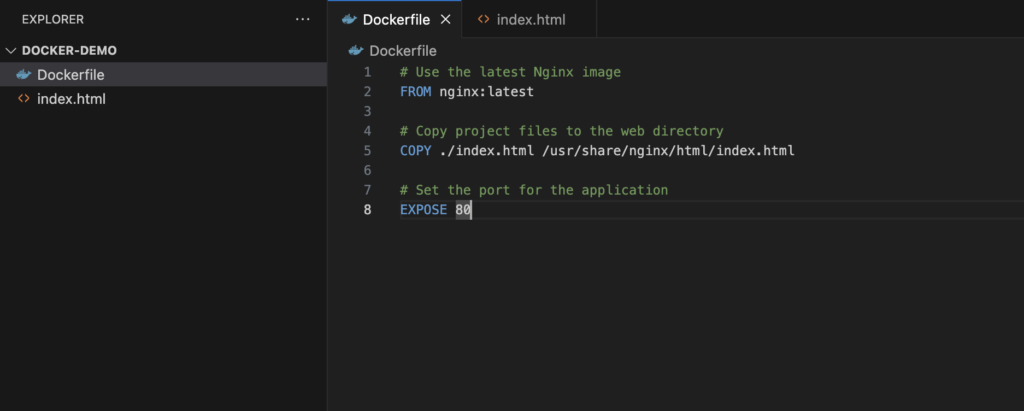
Step 2: Writing a Dockerfile

A Dockerfile defines the instructions for building a Docker image.

1. Open the Dockerfile and insert the following lines:

# Use the latest Nginx image
FROM nginx:latest

# Copy project files to the web directory
COPY ./index.html /usr/share/nginx/html/index.html

# Set the port for the application
EXPOSE 80

2. Save the file.

Dockerfile Code

Step 3: Build the Web Application

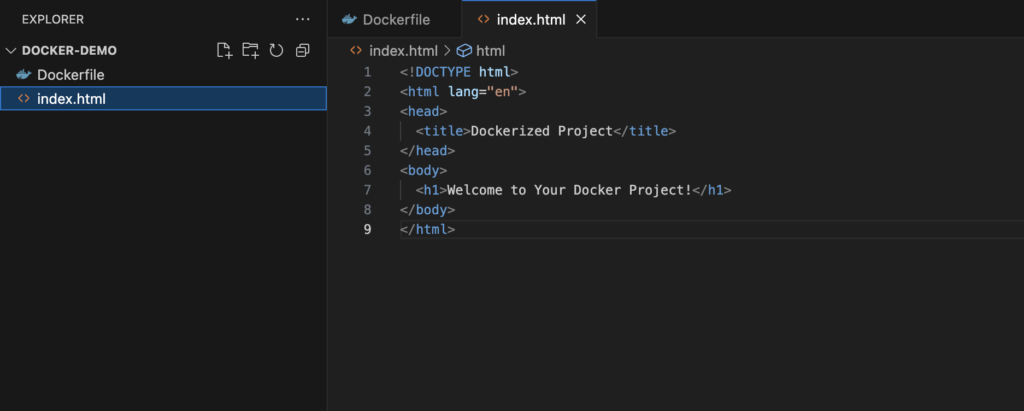
1. Open index.html and add simple HTML content:

<!DOCTYPE html>
<html lang="en">
<head>
  <title>Dockerized Project</title>
</head>
<body>
  <h1>Welcome to Your Docker Project!</h1>
</body>
</html>

2. Save the file.

Index File Code

Step 4: Build and Run the Docker Container

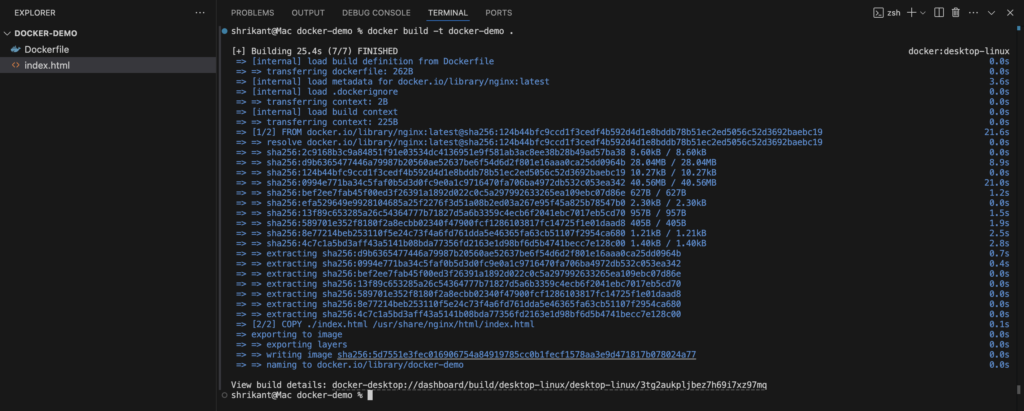
1. Build a Docker image with a custom name:

docker build -t docker-demo .
Docker Build Command

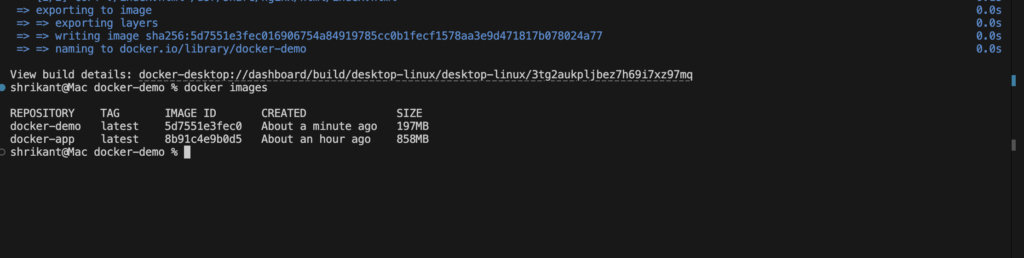
2. Confirm the image was created:

docker images
Docker Images Command

3. Launch the container:

docker run -d -p 8080:80 docker-demo
Server running browser

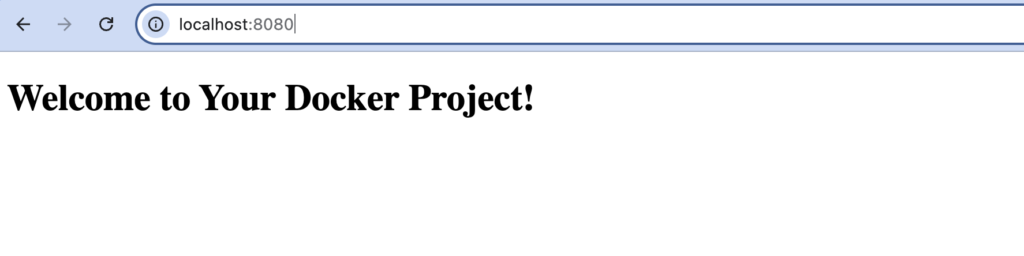
4. Open http://localhost:8080 in your browser to see your app in action.

Step 5: Docker Container Management

View Active Containers
docker ps

Stop a Running Container

docker stop <container_id>

Delete a Stopped Container

docker rm <container_id>

Clean Up Docker Images

docker rmi docker-demo

Conclusion

You have successfully learned how to build project using Docker. With Docker, you can easily package applications, ensure consistent environments, and streamline the deployment process. Continue exploring Docker’s advanced features to enhance your development workflow.

Additional Resources

For those interested in expanding their skills with APIs, check out our Top 10 Free APIs for Practice in 2025 and improve your JavaScript mastery with our Master ES6 JavaScript – Complete Guide at Master ES6 JavaScript – Complete Guide.
How to Install Docker on Your System: A Step-by-Step Guide

Docker is a powerful platform for developing, shipping, and running applications in containers. This Docker install tutorial will guide you through the installation process on Windows, macOS, and Linux.

Prerequisites

Before starting the Docker installation, ensure you meet the following requirements:

  • A 64-bit operating system
  • Administrative privileges
  • Internet connection

1. Install Docker on Windows

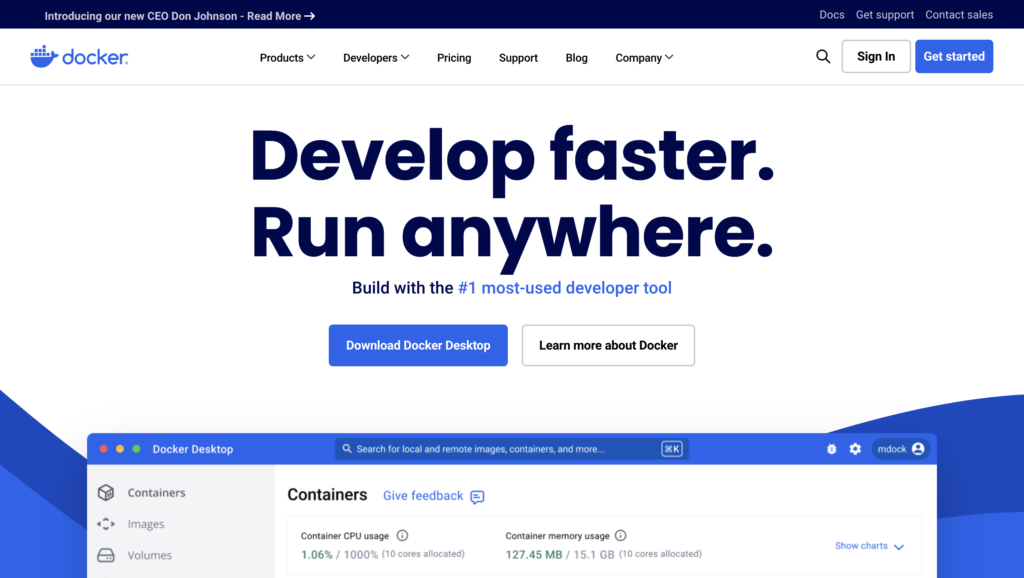
Docker’s official website
  1. Download Docker Desktop: Visit Docker’s official website and download Docker Desktop for Windows.
  2. Run the Installer: Double-click the installer and follow the on-screen instructions.
  3. Enable WSL 2 Backend: Ensure Windows Subsystem for Linux (WSL 2) is enabled for better performance.
  4. Complete Installation: Once installed, launch Docker Desktop and verify the installation by running:
docker --version

2. Install Docker on macOS

  1. Download Docker Desktop: Go to the Docker website and download Docker Desktop for macOS.
  2. Install Docker: Open the downloaded .dmg file and drag Docker to the Applications folder.
  3. Start Docker: Launch Docker from Applications and verify the installation:
docker --version

3. Install Docker on Linux

Update Package List: Open a terminal and update your system:

sudo apt update && sudo apt upgrade

2. Install Dependencies: Ensure essential packages are installed:

sudo apt install apt-transport-https ca-certificates curl software-properties-common

3. Add Docker Repository: Add Docker’s official GPG key and repository:

curl -fsSL https://download.docker.com/linux/ubuntu/gpg | sudo gpg --dearmor -o /usr/share/keyrings/docker-archive-keyring.gpg
echo "deb [arch=$(dpkg --print-architecture) signed-by=/usr/share/keyrings/docker-archive-keyring.gpg] https://download.docker.com/linux/ubuntu $(lsb_release -cs) stable" | sudo tee /etc/apt/sources.list.d/docker.list > /dev/null

4. Install Docker Engine: Execute the following commands:

sudo apt update
sudo apt install docker-ce docker-ce-cli containerd.io

5. Verify Docker Installation: Check if Docker is installed and running:

docker --version
sudo systemctl status docker

4. Post-Installation Steps

Enable Docker Without sudo:

sudo usermod -aG docker $USER
newgrp docker

Test Docker Installation: Run the hello-world container:

docker run hello-world

Conclusion

In this Docker install tutorial, you’ve learned how to install Docker on Windows, macOS, and Linux. With Docker set up, you’re ready to create and manage containerized applications effortlessly. Explore Docker’s powerful features and streamline your development workflow.

Additional Resources

For those interested in expanding their skills with APIs, check out our Top 10 Free APIs for Practice in 2025 and improve your JavaScript mastery with our Master ES6 JavaScript – Complete Guide at Master ES6 JavaScript – Complete Guide.
How to Create a Chrome Extension: A Step-by-Step Guide

Chrome extension

In the rapidly evolving world of web development, Chrome extensions continue to offer developers powerful tools to enhance browser functionality. In 2025, with Manifest V3 and new features in place, creating a Chrome extension has become even more streamlined and efficient.

This guide will walk you through everything you need to know—from setting up your project directory to writing the core files—ensuring that you can build a fully functional Chrome extension from scratch. Whether you’re a seasoned developer or a curious beginner, you’ll find actionable insights and tips to get your project off the ground and into the Chrome Web Store.

1. Set Up Your Project Directory

Create a new folder (my-2025-extension) for your Chrome extension project. Inside, you’ll place your configuration files, scripts, icons, and any HTML/CSS files.

2. Create the Manifest File

Chrome extensions use a manifest.json file to define their behavior and permissions. For Chrome’s Manifest V3 (which is current in 2025), your manifest might look like this:

{
  "manifest_version": 3,
  "name": "My 2025 Extension",
  "version": "1.0",
  "description": "A sample Chrome extension created in 2025.",
  "action": {
    "default_popup": "popup.html",
    "default_icon": {
      "16": "icons/icon16.png",
      "48": "icons/icon48.png",
      "128": "icons/icon128.png"
    }
  },
  "background": {
    "service_worker": "background.js"
  },
  "permissions": [
    "storage",
    "tabs"
  ],
  "content_scripts": [
    {
      "matches": ["https://*/*"],
      "js": ["contentScript.js"]
    }
  ]
}

Tip: Always check the Chrome Developers documentation for any updates on manifest standards or additional features introduced in 2025.

3. Create the Core Files

popup.html: This file defines the UI when a user clicks your extension’s icon.

<!DOCTYPE html>
<html lang="en">
<head>
  <meta charset="UTF-8" />
  <meta name="viewport" content="width=device-width, initial-scale=1.0" />
  <title>My 2025 Extension</title>
  <link rel="stylesheet" href="popup.css" />
</head>
<body>
  <h1>Hello from 2025!</h1>
  <button id="actionButton">Click Me</button>
  <script src="popup.js"></script>
</body>
</html>

popup.js: Add interactivity to your popup.

document.getElementById('actionButton').addEventListener('click', () => {
  alert('Button clicked!');
});

background.js: This service worker can handle background tasks or events.

chrome.runtime.onInstalled.addListener(() => {
  console.log('Extension installed in 2025!');
});

contentScript.js: If you need to interact with web pages directly, use a content script.

// Example: Highlight all paragraphs on supported pages.
document.querySelectorAll('.test p').forEach((p) => {
  p.style.backgroundColor = 'green';
});

popup.css: Style your popup.

body {
  font-family: Arial, sans-serif;
  width: 300px;
  padding: 10px;
}

h1 {
  font-size: 1.5em;
}

button {
  padding: 8px 12px;
  background-color: #4285f4;
  color: white;
  border: none;
  border-radius: 4px;
  cursor: pointer;
}

Icons: Create an icons folder and add your icon files (16×16, 48×48, 128×128). Generate Chrome extension icons quickly and easily.

4. Load and Test Your Extension Locally

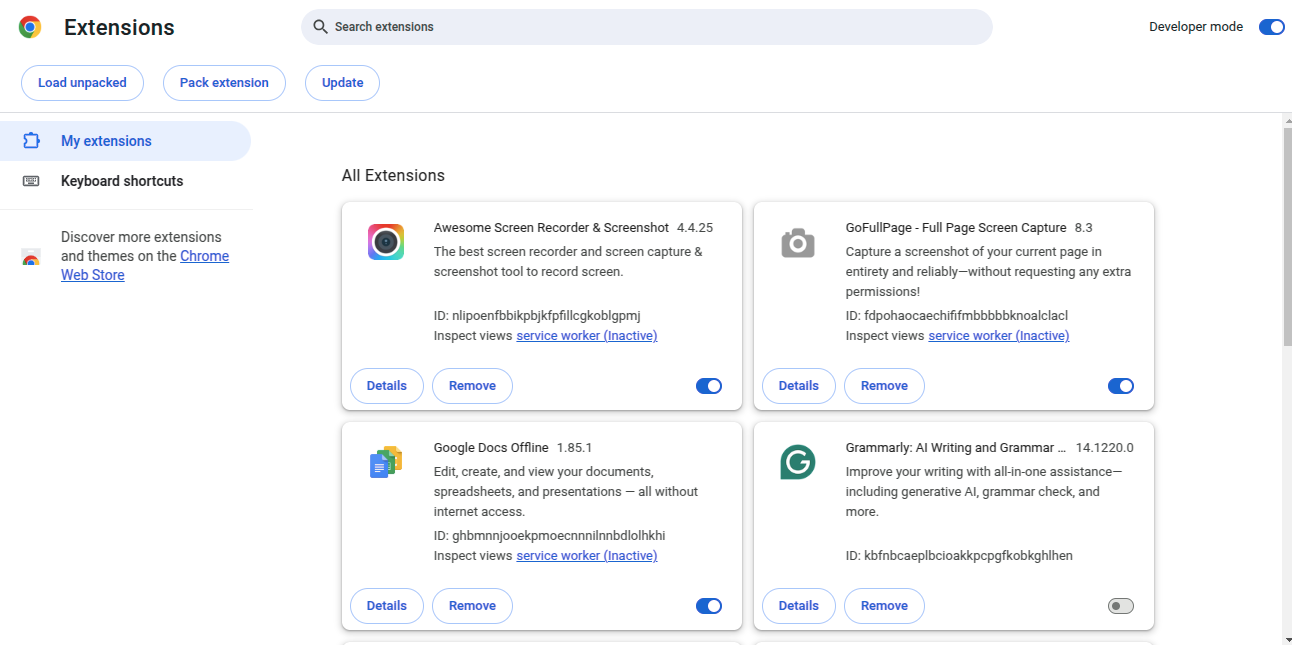
  1. Open Google Chrome and navigate to chrome://extensions/.
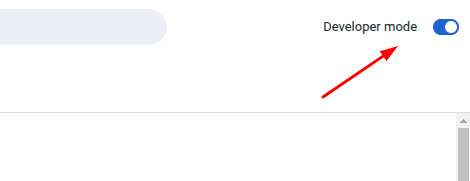
  2. Enable Developer mode (toggle is usually at the top-right).
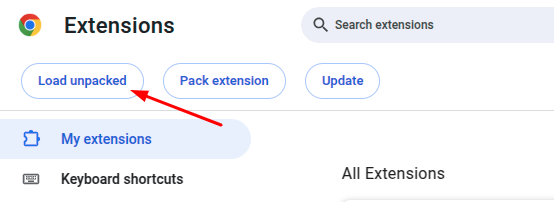
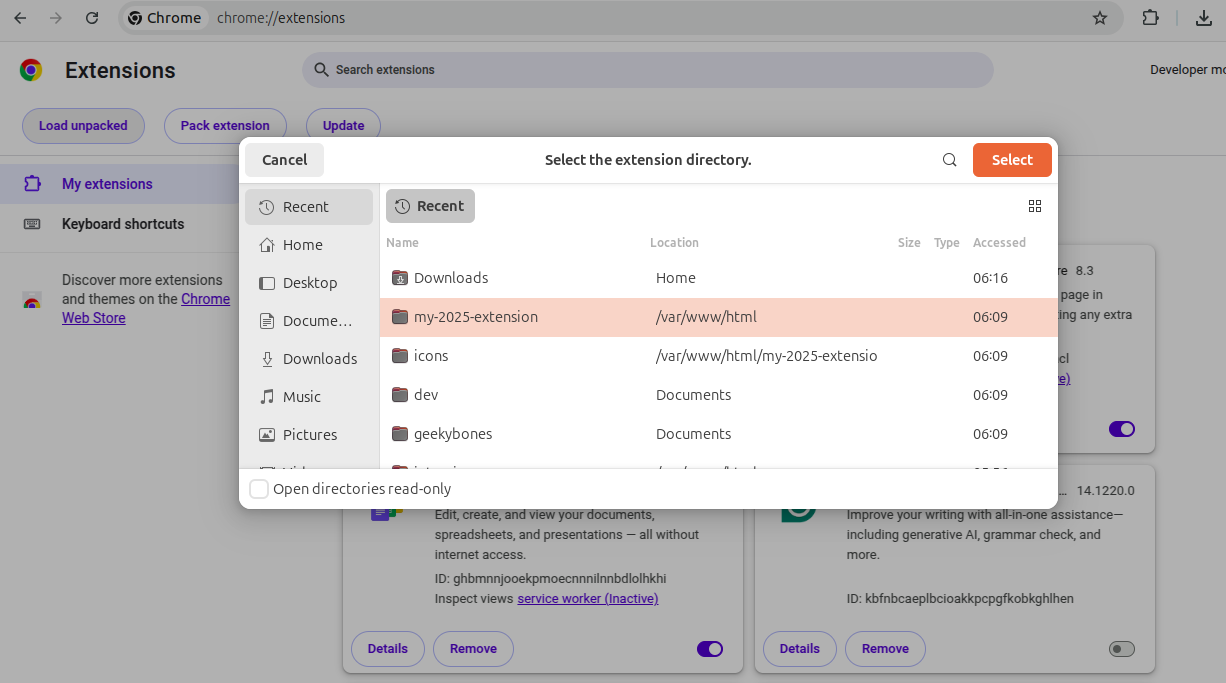
  3. Click Load unpacked and select your project folder.
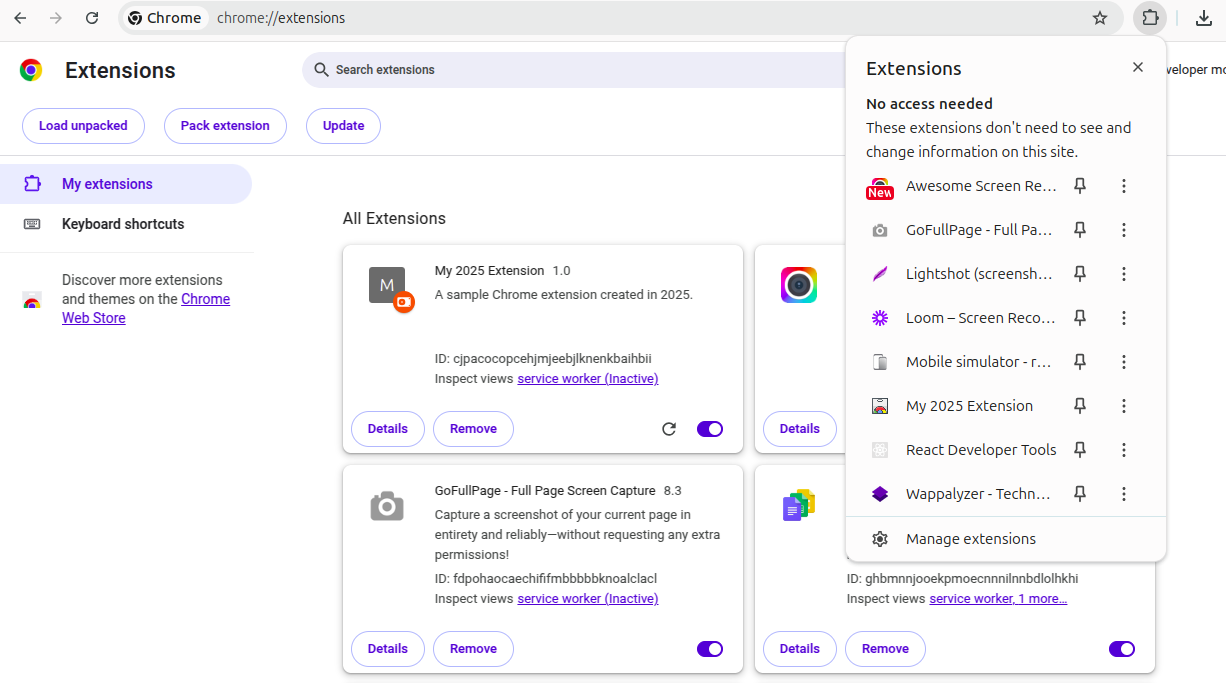
  4. Your extension should now be visible. Click on the extension icon to open the popup and test the functionality.

4.1: Open Google Chrome and navigate to chrome://extensions/.

Extensions

4.2: Enable Developer mode (toggle is usually at the top-right).

Enable developer mode toggle

4.3: Click Load unpacked and select your project folder.

Extension upload
Upload extension path

4.4: Your extension should now be visible. Click on the extension icon to open the popup and test the functionality.

5. Debug and Iterate

  • Use the Chrome DevTools: You can inspect your popup and background scripts by right-clicking inside the popup and selecting “Inspect.”
  • Console Logs: Use console.log in your scripts to debug issues.

6. Publish Your Extension

When you’re ready, you can package and submit your extension to the Chrome Web Store following their submission guidelines.

Additional Resources

For those interested in expanding their skills with APIs, check out our Top 10 Free APIs for Practice in 2025 and improve your JavaScript mastery with our Master ES6 JavaScript – Complete Guide at Master ES6 JavaScript – Complete Guide.