नमस्ते दोस्तों!
स्वागत है The Easy Master पर!
क्या आप कभी इस situation में फंसे हैं? आपने अपना FastAPI project पूरा कर लिया, सब कुछ बढ़िया चल रहा है, लेकिन अब जब आप इसे किसी और को दिखाना चाहते हैं, तो वो उसके laptop पर run ही नहीं होता? “Ye to mere system pe chal raha tha…” – ये dialogue आपने भी दिया होगा।
“Mere system pe chal raha tha” – यही एक developer की सबसे बड़ी problem है। क्योंकि har system अलग है – अलग OS, अलग Python version, अलग libraries, अलग dependencies.
Aur ek problem – 8GB RAM वाले laptop पर आप एक ही time पर कितने applications चला सकते हो? 2-3? और आपको एक साथ 5-6 चलाने हैं? तो क्या करोगे?
Is Docker introduction in Hindi article में मैं आपको exactly यही sikhane wala hoon:
✅ Docker kya hai (इतना simple example में ki 5 saal ka baccha bhi samajh jaye)
✅ Container vs Virtual Machine – REAL difference (diagrams ke saath)
✅ Docker ka Architecture – Client, Daemon, Registry, Images
✅ Hands-on with Docker – Installation se lekar apna pehla container run karna
✅ Docker commands – Run, Build, PS, Exec, Stop, RM
✅ Dockerfile – apni custom image kaise banayein step-by-step
✅ B.Tech projects mein Docker kaise use karein
✅ Docker Compose – multi-container applications
✅ Common mistakes jo beginners karte hain (aur unka solution)
Chaliye, डॉक्टर साहब Docker से मिलवाते हैं! 🐳
Table of Contents
1. Docker Kya Hai? – मैं example से समझाता हूँ
Sabse simple example – shipping container.
Maan lo tumhare paas ek ट्रक है. Usme tum kuch bhi load kar sakte ho – furniture, grains, machinery. But problem ye hai ki jab tum ek cheez load karoge, to second cheez ke liye jagah nahi hai. Isliye log use karte hain standard shipping containers – jisme tum kuch bhi pack kar sakte ho, aur fir us container को किसी भी ship या truck में load kar sakte ho.
Docker exactly यही करता है, लेकिन software के लिए.
Docker क्या है? – One line definition
Docker एक containerization platform है जो आपके application और उसकी सभी dependencies (code, runtime, libraries, environment variables) को एक container में pack करता है, जिसे आप किसी भी system पर run कर सकते हो.
Thoda aur detail mein समझो
जब आप “It works on my machine” bolte हो, तो Docker उस problem का solution है.
Docker आपकी application को उसके पूरे “ecosystem” के साथ एक container में रख देता है. फिर आप उस container को कहीं भी ले जा सकते हो – किसी और के laptop पर, cloud पर, server पर – और वह perfectly चलेगा.
Docker ke magic words: Build once, run anywhere.
Docker vs. Virtual Machines – Why Docker is Lighter
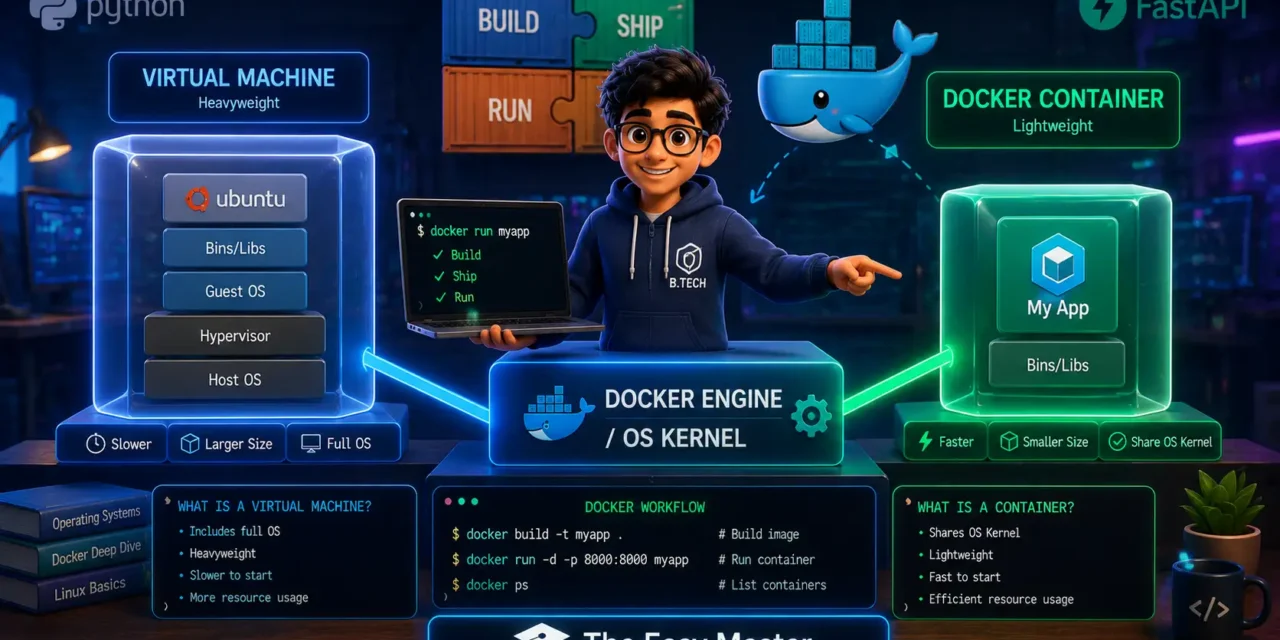
यहां वह diagram है जो पूरी story समझा देगा:
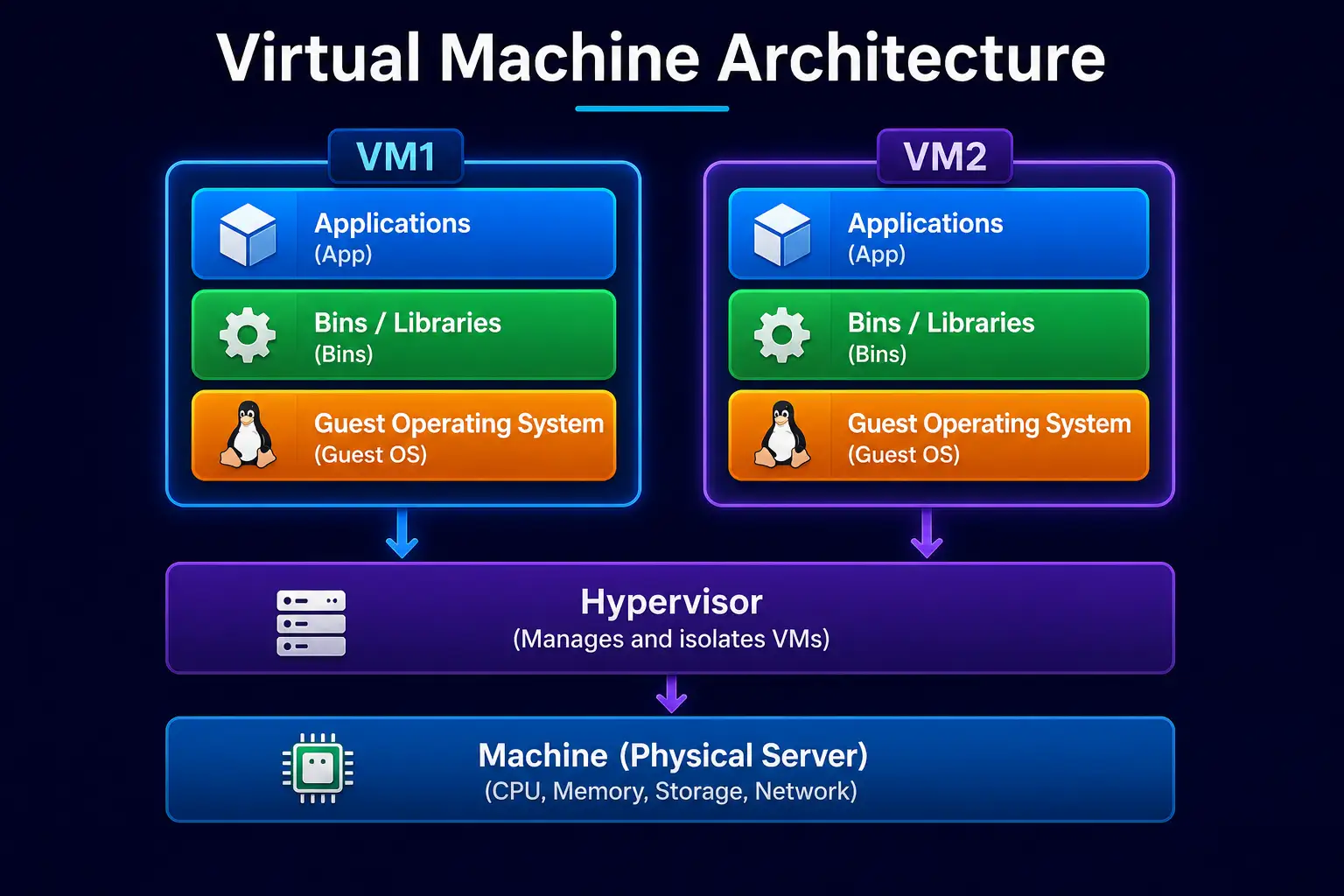
लेफ्ट साइड: Traditional Virtual Machines – हर VM अपना पूरा OS और kernel चलाता है. Hypervisor hardware को virtualize करता है.
राइट साइड: Docker Containers – सारे containers host OS का kernel share करते हैं. Docker daemon इन्हें manage करता है.
Compare करें:
- VM: अपना OS, kernel, और सारी system files. Size = GBs.
- Docker: Application + उसकी dependencies. OS nahi. Size = MBs.
Docker containers “not virtual machines (VMs); they are isolated processes that utilize Linux kernel features for separation”. This is why they are fast and lightweight.
2. Container vs Virtual Machine – Real Difference
Simple way to understand
Ek Virtual Machine (VM) एक पूरा नया computer होने का नाटक करती है. वो अपना खुद का OS चलाती है, अपना kernel चलाती है, और सोचती है कि वो एक real computer है.
Docker container एक application होने का नाटक करता है. वो जानता है ki वो container है, और peacefully host OS ke kernel को share करता है.
जैसा कि एक बहुत अच्छी लाइन में कहा गया है: “A Virtual Machine pretends to be a computer. A Container knows it is just an application”. यही mindset difference है जो beginners के लिए सबकुछ समझा देता है.
Comparison Table – Side by Side Comparison
| Feature | Virtual Machine (VM) | Docker Container |
|---|---|---|
| OS | Every VM has its own OS | All containers share host OS |
| Kernel | Separate kernel per VM | All containers share host kernel |
| Size | GBs (gigabytes) | MBs (megabytes) |
| Startup Time | Minutes (min) | Seconds (sec) |
| Resource Use | High (CPU, RAM, disk) | Low (lightweight) |
| Isolation | Strong (hardware-level) | Process-level |
| Portability | Less (need hypervisor) | High (any Docker host) |
Visual Understanding
Virtual Machine Architecture:
Docker Container Architecture:
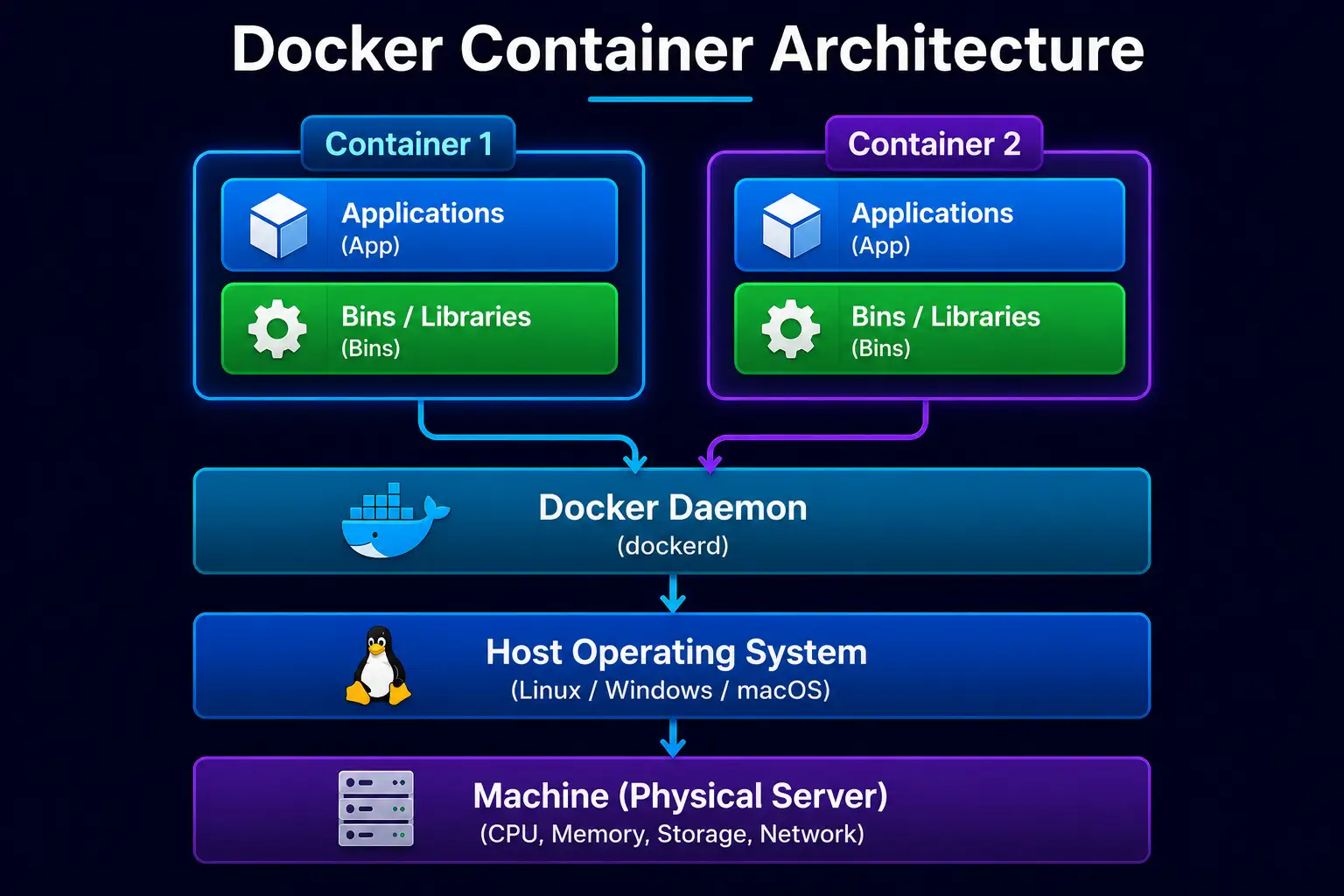
Key point: “Unlike VMs, which have their own kernel and guest OS, Docker containers share the host kernel, resulting in rapid start-up times and minimal resource usage”.
Real-Life Analogy
- VM: जैसे आप एक पूरा नया घर (OS) बनाते हो हर बार एक नए कमरे के लिए. Heavy and expensive.
- Docker: जैसे आप एक apartment building mein rehte ho (एक OS sabke liye). Har flat (container) का अपना सामान (application) है, लेकिन बिजली-पानी (kernel) सब share करते हैं. Lightweight and cost-effective.
Resource Comparison in Numbers
- एक VM typically लेता है: 5-10 GB disk space और कम से कम 1-2 GB RAM
- एक Docker container लेता है: 50-500 MB disk space और कम से कम 10-50 MB RAM
- Multiple containers एक साथ चल सकते हैं, जबकि VMs quickly system resources को खा जाते हैं.
Result: Docker is much more efficient. Containers “require less CPU and memory” compared to VMs. Agar आपके पास limited resources वाला laptop है, तो Docker is a lifesaver.
3. Docker Architecture – तीन भाइयों की कहानी
Docker की architecture तीन main components से मिलकर बनी है:
- Docker Client (User ka interface)
- Docker Daemon (The brain and muscle)
- Docker Registry (Image storage)
3.1 Docker Client (Sipahi)
Docker Client वो tool है जिससे आप commands देते हो – docker run, docker ps, docker build. Client REST API ke through Daemon से communicate करता है. Aapka terminal hi aapka Client hai.
3.2 Docker Daemon (King)
Daemon Docker का heart है – यह containers और images का lifecycle manage करता है. यह images को build करता है, containers को run करता है, और sab kuch background में manage करता है.
Docker Daemon “containers and images manage karta hai and user ka input receive karta hai through Client”. यह background mein ek service की तरह चलता है.
3.3 Docker Registry (Treasury)
Registry वह जगह है जहाँ Docker images store होती हैं. सबसे famous registry है Docker Hub – जहाँ लाखों public images available हैं.
Registry “images store karti hai aur distribute karti hai”. आप अपनी custom image build karke registry (public ya private) में push kar sakte ho.
How All Three Work Together – Step-by-Step
- Aap terminal mein likhte ho:
docker run hello-world - Client ये command Daemon ko bhejta hai
- Daemon check karta hai: “Kya mere paas ‘hello-world’ image hai?”
- Agar nahi, तो Daemon Registry (Docker Hub) से image download (pull) karta hai
- Daemon image se container create karta hai aur run karta hai
- Aapko output dikhta hai
Khatam! तीनों components milkar kaam karte hain. Simple hai na?
Docker Objects: Images and Containers
Images: “It does not change as it contains files and settings required for container execution”. Image एक blueprint है – jisse container create hota hai.
Containers: Running instance of an image. आप एक image से multiple containers run कर सकते हो.
4. Docker vs Traditional – क्यों Docker यूज़ करें?
Comparison Table
| Feature | Traditional Deployment | Docker Deployment |
|---|---|---|
| Setup time | Hours/days | Minutes (minutes) |
| Portability | Low (dependent on OS) | High (works everywhere) |
| Resource use | High (server per app) | Low (containers share OS) |
| Scaling | Difficult (add more servers) | Easy (spin up more containers) |
| Isolation | Limited (dependency conflicts) | Complete (isolated per container) |
| “It works on my machine” | Common problem | Solved |
Why Should a B.Tech/BCA/B.Sc Student Learn Docker?
- Placements & Jobs: Docker is a non-negotiable skill in the industry. DevOps, Backend, Cloud roles all require Docker.
- Projects: Show potential employers that you know industry-standard tools, not just basic coding.
- Consistency: वो project जो तुमने अपने system पर बनाया, तुम्हारे friend के system पर भी चलेगा – without extra setup.
- Experiment Fearlessly: Docker mein kuch bhi try karo – system खराब नहीं होगा. Not working? Delete the container and start fresh.
- Microservices: Docker is the foundation of microservices architecture, which is a must-know concept for modern development.
5. Docker Ko Install Karein – Windows/Linux/Mac
5.1 For Windows and Mac
- Docker Desktop download karo from docker.com/products/docker-desktop
- Install करो (default settings are fine)
- Restart your computer
- Terminal / PowerShell खोलो और लिखो:
docker --version– version dikhna chahiye
Important for Windows: WSL 2 (Windows Subsystem for Linux) enable करना पड़ सकता है. Installer usually handles it automatically.
5.2 For Linux (Ubuntu/Debian)
Ubuntu 26.04 LTS और 24.04 LTS support करता है Docker Engine.
Step 1: Update packages
sudo apt updateStep 2: Install dependencies
sudo apt install -y ca-certificates curlStep 3: Add Docker’s official GPG key
sudo install -m 0755 -d /etc/apt/keyrings
sudo curl -fsSL https://download.docker.com/linux/ubuntu/gpg -o /etc/apt/keyrings/docker.asc
sudo chmod a+r /etc/apt/keyrings/docker.asc
Step 4: Add repository
echo \
  "deb [arch=$(dpkg --print-architecture) signed-by=/etc/apt/keyrings/docker.asc] https://download.docker.com/linux/ubuntu \
  $(. /etc/os-release && echo "$VERSION_CODENAME") stable" | \
  sudo tee /etc/apt/sources.list.d/docker.list > /dev/null
sudo apt update
Step 5: Install Docker Engine
sudo apt install -y docker-ce docker-ce-cli containerd.io docker-buildx-plugin docker-compose-pluginStep 6: (Optional) Add your user to docker group ताकि सूदो ना लगाना पड़े
sudo usermod -aG docker $USERLog out and log back in.
Verify: docker run hello-world
Note: Agar आप Ubuntu Resolute 26.04 LTS use कर रहे हो, तो Docker fully supported है.
5.3 Verify Installation (सब के लिए)
Run: docker run hello-world
If you see “Hello from Docker!” – Congratulations! Docker successfully installed hai!
6. Apna Pehla Container Run Karein – Let’s GO!
Docker install हो गया? Let’s run your first container.
Step 1: Pull and Run an Ubuntu container
docker run -it ubuntu bashये कमांड क्या करती है:
docker run– एक नया container run करो-it– interactive mode (तुम container के साथ interact कर सकते हो)ubuntu– ubuntu image use करोbash– bash shell चलाओ
Step 2: Inside the container
Ab tum ubuntu container ke andar ho. Try karo:
# Inside container
ls
cat /etc/os-release
pwd
Ye dekho – ye ek alag environment है, तुम्हारे host system से completely isolated. Lekin yeh container apna kernel nahi chala raha – ye tumhare host OS का kernel share कर रहा है.
Step 3: Install something inside container
apt update
apt install -y python3
python3 --version
Ab container mein Python install ho gaya. Lekin ye changes temporary हैं. Agar tum exit करके container stop kar doge, to ये sab kuch delete हो जाएगा.
Step 4: Exit container
exitTum wapas apne host system mein aa gaye.
Step 5: See stopped containers
docker ps -aYahan tum apna ubuntu container list mein dekhoge, status “Exited”.
Step 6: Run a web server container (Fun part!)
docker run -d -p 8080:80 nginxYe kya hua:
-d: Background mein चलाओ (detached mode)-p 8080:80: Host port 8080 को container port 80 से map करोnginx: Nginx web server image use करो
Now open your browser and go to http://localhost:8080. You’ll see the Nginx welcome page!
Ye web server tumhare system mein installed nahi hai – ye container mein चल रहा है. Aur तुम बिना कुछ install kiye चला रहे हो!
7. Important Docker Commands – जेब में रखें
Commands Table – Everyday Use
| Command | What it does | Example |
|---|---|---|
docker run <image> | Container create & run | docker run -it ubuntu bash |
docker ps | List running containers | docker ps |
docker ps -a | List all containers (including stopped) | docker ps -a |
docker stop <container_id> | Stop a running container | docker stop abc123 |
docker start <container_id> | Start a stopped container | docker start abc123 |
docker rm <container_id> | Remove a container | docker rm abc123 |
docker images | List all downloaded images | docker images |
docker rmi <image_id> | Remove an image | docker rmi ubuntu |
docker pull <image> | Download image without running | docker pull python |
docker exec -it <container_id> bash | Run command in running container | docker exec -it abc123 bash |
docker logs <container_id> | See container logs | docker logs abc123 |
docker build -t name . | Build image from Dockerfile | docker build -t myapp . |
Commands Explanation
docker ps vs docker ps -a:
docker ps: sirf running containers दिखाता है.docker ps -a: sab containers दिखाता है, chahe running ho ya exited.
docker stop vs docker rm:
stop: container को pause करता है, पर रखता हैrm: container को permanently delete करता है
docker exec:
Container already running है, aur उसमें additional command run करनी है – use docker exec.
8. Dockerfile – Apni Image Khud Banayein
Dockerfile एक text file है जिसमें आप instructions likhte ho ki image कैसे build होगी.
8.1 Simple Dockerfile Example (Python App)
Project structure:
myapp/
├── Dockerfile
├── app.py
└── requirements.txt
app.py (Simple FastAPI or Flask app):
from flask import Flask
app = Flask(__name__)

@app.route('/')
def hello():
    return "Hello from Docker Container!"

if __name__ == "__main__":
app.run(host='0.0.0.0', port=5000)requirements.txt:
flaskDockerfile:
# Stage 1: Use official Python image
FROM python:3.11-slim

# Stage 2: Set working directory
WORKDIR /app

# Stage 3: Copy requirements and install
COPY requirements.txt .
RUN pip install --no-cache-dir -r requirements.txt

# Stage 4: Copy application code
COPY app.py .

# Stage 5: Expose port (Flask default 5000)
EXPOSE 5000

# Stage 6: Run the application
CMD ["python", "app.py"]
8.2 Build the image
docker build -t my-flask-app .8.3 Run the container
docker run -p 5000:5000 my-flask-appBrowser में जाओ http://localhost:5000 – तुम्हारी app run हो रही है!
8.4 Dockerfile Commands Cheat Sheet
| Command | Purpose |
|---|---|
FROM | Base image specify करो (पहली line) |
WORKDIR | Working directory set करो |
COPY | Files copy करो host से image में |
RUN | Image build time पर command run करो |
CMD | Container run time par command run करो |
EXPOSE | Port expose करो |
ENV | Environment variable set करो |
ARG | Build-time variable |
8.5 Best Dockerfile Practices for Beginners
- Use official images (
python:3.11-sliminstead ofubuntu+ manual Python install) - Chain
RUNcommands with&&to reduce layers - Copy requirements and install before copying the rest of the code (better caching)
- Use
.dockerignorefile to exclude unnecessary files (like.git,__pycache__) - Don’t run as root in production – but for learning, root is fine
9. Real Project Example – FastAPI App Ko Dockerize Karein
Ab hum ek real FastAPI app लेंगे और उसे Docker container में run करेंगे.
Project Structure
fastapi-docker/
├── Dockerfile
├── app/
│   ├── __init__.py
│   └── main.py
├── requirements.txt
└── .dockerignore
app/main.py
from fastapi import FastAPI

app = FastAPI(title="Dockerized FastAPI")

@app.get("/")
def root():
    return {"message": "Namaste from Docker Container!"}

@app.get("/health")
def health():
    return {"status": "healthy"}

if __name__ == "__main__":
    import uvicorn
    uvicorn.run(app, host="0.0.0.0", port=8000)
requirements.txt
fastapi
uvicorn
Dockerfile
FROM python:3.11-slim

WORKDIR /app

COPY requirements.txt .
RUN pip install --no-cache-dir -r requirements.txt

COPY ./app ./app

EXPOSE 8000

CMD ["uvicorn", "app.main:app", "--host", "0.0.0.0", "--port", "8000"]
Build & Run
docker build -t fastapi-app .
docker run -p 8000:8000 fastapi-app
Browser: http://localhost:8000/docs – तुम्हारी FastAPI app डॉक्यूमेंटेशन के साथ ready है!
Yehi आपका FastAPI project Docker container में run हो रहा है – और यह किसी भी system पर उसी तरह run होगा.
10. Docker Compose – Do ya Teen Container Ek Saath
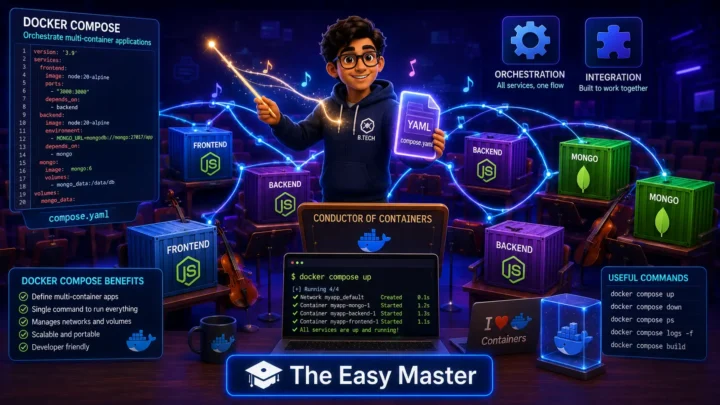
Docker Compose आपको multiple containers को एक साथ run करने और manage करने देता है. For example: FastAPI app + PostgreSQL database + Redis cache – सब एक command से up हो जाएंगे.
Example: FastAPI + PostgreSQL with Docker Compose
docker-compose.yml:
version: '3.8'

services:
  api:
    build: .
    ports:
      - "8000:8000"
    environment:
      - DATABASE_URL=postgresql://user:password@db:5432/mydb
    depends_on:
      - db
    restart: always

  db:
    image: postgres:15-alpine
    environment:
      - POSTGRES_USER=user
      - POSTGRES_PASSWORD=password
      - POSTGRES_DB=mydb
    volumes:
      - postgres_data:/var/lib/postgresql/data
    ports:
      - "5432:5432"

volumes:
  postgres_data:
Commands for Docker Compose
| Command | Purpose |
|---|---|
docker-compose up | सभी services start करो |
docker-compose up -d | Background में start करो |
docker-compose down | सभी services stop और remove करो |
docker-compose logs | Logs देखो |
docker-compose ps | Service status देखो |
Example Run
docker-compose up -d
# API runs at localhost:8000
# PostgreSQL runs at localhost:5432
11. B.Tech Projects Mein Docker Kaise Use Karein?
Project #1: ML Model Deployment
तुमने एक ML model (e.g., sentiment analysis) बनाया है और उसे FastAPI endpoint के रूप में expose करना है. Docker container में pack करो – तो teacher के laptop पर भी run होगा.
Project #2: Multi-Tier Web Application
Example: MERN (MongoDB, Express, React, Node.js) stack – 5 containers. Docker Compose से एक command में up.
Project #3: Database for Your App
College project के लिए PostgreSQL database use karni है? Docker container में PostgreSQL run करो – installation headache बचाओ.
Project #4: Development Environment
VS Code dev containers use करके पूरी development environment एक click में setup.
Docker’s Value in Your Portfolio
Employers love seeing Docker in a candidate’s portfolio. Add to your resume:
- “Containerized FastAPI application using Docker for consistent deployment”
- “Used Docker Compose to orchestrate multi-service architecture”
- “Deployed containerized application to Railway/ECS”
Big difference among applicants: knowing Docker.
12. Common Mistakes – Matlab Bhool Jaoge?
Mistake #1: Forgetting .dockerignore
Problem: node_modules or __pycache__ copy हो जाते हैं – image size bloated.
Solution: Create .dockerignore file:
__pycache__
*.pyc
.git
.env
node_modules
Mistake #2: Using :latest tag in production
Problem: FROM python:latest – unpredictable build.
Solution: Always pin a specific version: FROM python:3.11-slim
Mistake #3: Running as root in production
Solution: Create a non-root user in Dockerfile.
Mistake #4: Running too many commands in one layer
✅ Good:
RUN apt-get update && apt-get install -y package && rm -rf /var/lib/apt/lists/*❌ Bad: Multiple RUN for each command (creates unnecessary layers).
Mistake #5: Not using .dockerignore (again important)
13. Best Practices – Acchi Aadatien Dal Lo
- Always pin base image versions – No
:latestin production. For Python:FROM python:3.11-slim. - Keep images small: Use slim or alpine variants.
python:3.11-slim>python:3.11. - Leverage caching: Copy requirements and install before copying code.
- Use
.dockerignore– Exclude unnecessary files. - One process per container – Don’t run both web server and database in same container.
- Use environment variables for configuration – Not hardcoded values.
- Prefer
COPYoverADD– Unless you need auto-extraction of tar files. - Use health checks for production containers.
14. Resources – Cheat Sheet + Practice Prompts
Cheat Sheet (Copy-Paste Ready)
# ---------- DOCKER COMMANDS ----------
docker --version                  # Check Docker version
docker run -it ubuntu bash        # Run Ubuntu container interactively
docker ps                         # List running containers
docker ps -a                      # List all containers
docker stop <container_id>        # Stop a container
docker start <container_id>       # Start a container
docker rm <container_id>          # Remove a container
docker images                     # List images
docker rmi <image_id>             # Remove an image
docker pull python                # Download Python image
docker exec -it <container_id> bash  # Run command in running container
docker logs <container_id>        # See container logs
docker build -t myapp .           # Build image from Dockerfile
docker run -d -p 8080:80 nginx    # Run Nginx in background

# ---------- DOCKERFILE ----------
FROM python:3.11-slim
WORKDIR /app
COPY requirements.txt .
RUN pip install -r requirements.txt
COPY . .
CMD ["python", "app.py"]

# ---------- DOCKER COMPOSE ----------
docker-compose up -d              # Start all services in background
docker-compose down               # Stop and remove
docker-compose logs               # See logs
Practice Prompts
Beginner: Docker Desktop install karo, docker run hello-world चलाओ, फिर docker run -it ubuntu bash run करो. Container mein kuch commands चलाकर exit करो. docker ps -a से देखो.
Intermediate: Python Flask app likho, Dockerfile बनाओ, image build करो, container run करो. docker logs से logs देखो. Image size kam karne ke liye python:3.11-slim use करो.
Advanced: FastAPI app + PostgreSQL compose file बनाओ. Docker Compose से up करो. Check करो ki FastAPI database से connect हो सकता है या नहीं. Volumes mount करो ताकि data persist हो. .env file use karo for configuration.
15. FAQ
Q1: Docker aur Virtual Machine mein main difference kya hai?
VM apna full OS और kernel run करता है, size GBs में. Container host OS ka kernel share करता है, size MBs में. Containers faster start, less resource intensive, aur more portable हैं.
Q2: Kya Docker Windows par bhi chal sakta hai?
Haan, Docker Desktop Windows 10/11 version 22H2 और newer पर supported है, जहाँ WSL 2 enabled हो. Mac (Intel aur Apple Silicon) पर भी chal sakta है.
Q3: Docker image aur container mein kya antar hai?
Image: blueprint, read-only template (like a class)
Container: running instance of an image (like an object)
Q4: Dockerfile kya hota hai?
Dockerfile एक text file है जिसमें instructions होती हैं ki image kaise build karni है – base image kya hai, कौन-कौन si files copy karni हैं, कौन-कौन se commands run karne hain.
Q5: Ek system par kitne containers chal sakte hain?
Depend karta hai available resources पर. हर container lightweight होता है, तो आप एक system पर 10-20 containers easily चला सकते हो, जबकि utne VMs नहीं चला पाओगे.
Q6: Docker Compose kyun use karein?
Jab multiple containers ek saath run karne hote hain (जैसे app + database + cache), Docker Compose एक ही command se sabko start kar देता है – no need to run separate docker run commands for each.
Q7: Kya Docker free hai?
Haan, Docker Engine aur Docker Desktop Community edition free हैं. Docker Desktop large organizations ke liye paid ho sakta है, but students aur individual developers ke liye free hai.
16. Conclusion
Bahut badhiya! Aapne aaj seekh liya:
✅ Docker introduction in Hindi – complete beginner’s guide
✅ Container vs VM – सच्चा difference samajh aa gaya hoga
✅ Docker architecture – Client, Daemon, Registry, Images
✅ Installation – Windows/Linux/Mac पर setup
✅ Docker commands – Run, PS, Exec, Stop, RM, Build
✅ Dockerfile – apni custom image kaise banayein
✅ Docker Compose – multi-container application orchestration
✅ Best practices aur common mistakes
Docker ab utna mushkil nahi lagta na? Bas practice chahiye.
Aapki challenge: Upar diye practice prompts mein se “beginner” wala karo. Apna output comment mein share karo.
Next topic kya chahiye?
- Docker Compose in Hindi?
- Docker + FastAPI Production Deployment?
- Kubernetes Basics in Hindi?
Comment mein batao!
The Easy Master ke saath containerization seekhte raho. Happy Dockering! 🐳🚀
Resources
- Docker Official Documentation
- Docker Hub – Find Official Images
- Dockerfile Best Practices Guide
- Docker Compose Documentation
- Awesome Docker – Curated Resources List
Additional Resources
- MongoDB Setup – CRUD Operations समझे (Beginner Guide) 2026
- MongoDB Compass से GUI Database Manage करने का आसान तरीका | Beginner Tutorial 2026
- Node.js MongoDB Connection – Mongoose Setup समझे 2026
- MongoDB Data Modeling – Embedded Documents vs References 2026
- MongoDB Indexing – Query Speed बढ़ने करने का आसान तरीका
- MongoDB Aggregation Pipeline – Stages समझे | Practical Examples
- Express MongoDB CRUD – Complete REST API Example
- Mongoose ODM – Schema, Model, and Validation समझे 2026
- MongoDB Atlas – Cloud Database Free में Deploy करें 2026
- JWT Authentication MongoDB – User Login System कैसे बनाएं 2026
- Next.js App Router – Pages Router से क्या बदला? Complete Guide 2026
- Next.js Server Components – ‘use client’ कब और कहां Use करें
- Next.js Routing – Layouts, Dynamic Routes and Nested Routes 2026
- Next.js 16 New Features – Turbopack, Cache Components and proxy.ts
- Next.js Partial Prerendering – Static and Dynamic Content साथ में
- Next.js Authentication – JWT Session Management (App Router) 2026
- Next.js SEO – Metadata API and Image Optimization समझे 2026
- Next.js TypeScript – Full-Stack Type-Safe App कैसे बनाएं
- FastAPI Kya Hai? FastAPI Python Setup Aur Pehla API Hindi 2026
- FastAPI Path Parameters Hindi – शून्य से हीरो तक गाइड 2026
- Pydantic v2 Tutorial Hindi – Data Validation Master 2026
- FastAPI dependency injection Hindi – Code Reuse Ka Magic
- FastAPI Async Await Hindi – Non-Blocking Code 2026
- FastAPI PostgreSQL SQLModel Hindi – Async Guide 2026
- FastAPI JWT Authentication Hindi – Secure API Login
- FastAPI OpenAI Integration Hindi – AI Chatbot API 2026
- FastAPI Multi-Agent AI Hindi – LangGraph Zero to Hero
- FastAPI Deployment Hindi – Railway Zero to Hero 2026
Views: 395