नमस्ते दोस्तों!
स्वागत है The Easy Master पर!
तो आपने Docker के बारे में सुना है, है ना? “Docker se application containerized hoti hai”, “Docker se deployment easy hota hai” – ये सब सुनकर लगता है कि कुछ बहुत जटिल चीज़ है।
पर मैं आपको सीधी-सादी बात बताता हूँ – Docker complicated नहीं है।
जब मैंने पहली बार Docker सीखना शुरू किया, तो मैं भी सोचता था – “Image क्या चीज़ है? Container क्या है? कहाँ से शुरू करूँ?”। फिर मैंने अपना पहला container run किया। एक कमांड, और देखते ही देखते terminal पर “Hello from Docker!” आ गया। उस पल मुझे Docker की power समझ आ गई।
इस Docker images and containers Hindi guide में मैं आपको वही experience देना चाहता हूँ।
हम सीखेंगे:
✅ Image vs Container – इतने आसान example से कभी नहीं भूलोगे
✅ Docker Hub – दुनिया की सबसे बड़ी image repository
✅ docker pull – images kaise download करें
✅ docker run – अपना पहला container कैसे launch करें
✅ Container Lifecycle – create, start, stop, remove, logs
✅ Hands-on Exercises – real commands के साथ practice
✅ Cheat Sheet – commands की जेब में रखने लायक list
चाहे आप B.Tech student हों, developer हों, या DevOps सीख रहे हों – Docker आपकी ज़िंदगी आसान बना देगा।
तो चलिए, बिना डरे, कंटेनर की दुनिया में कदम रखते हैं।
Open your terminal. Let’s roll.
Table of Contents
1. Images vs Containers – The Ice Cube & Water Analogy
Docker Images और Containers को लेकर सबसे ज्यादा confusion होती है। तो चलिए, इस confusion को एक बार और हमेशा के लिए खत्म करते हैं।
The Analogy (Analogy = उदाहरण)
🧊 Image → Ice Cube (Recipe / Blueprint)
💧 Container → Water (Real running thing)
Step 1: Ice Cube (The Image)
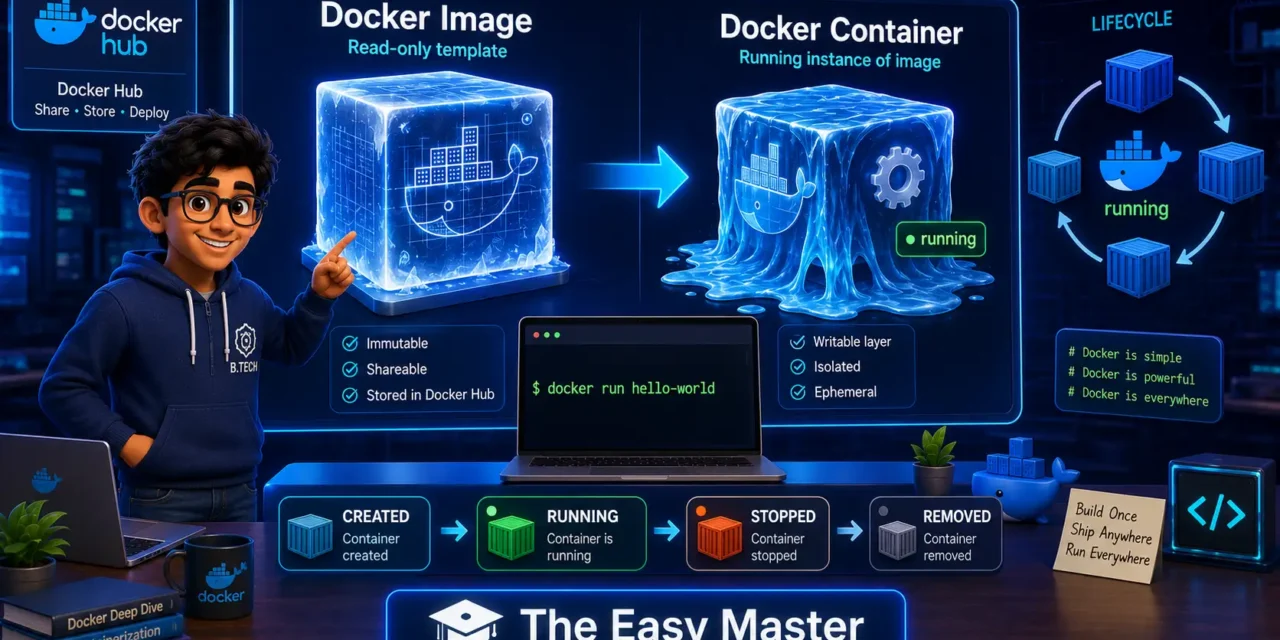
एक Ice Cube एक blueprint है। इसमें frozen, static, read-only instructions होती हैं कि पानी कैसा होना चाहिए। Ice Cube को आप चम्मच से हिलाओ या उसे तोड़ो – वो अपनी shape नहीं बदलता। Docker Image भी ऐसा ही है। यह एक बार बन जाने के बाद read-only template है। इसे run नहीं किया जा सकता।
Docker Image Definition (Technical):
A Docker Image is a read-only template with instructions for creating a Docker container. It includes everything needed to run an application – code, runtime, system tools, libraries, and settings.
Kapde ki Boli: Image ek blueprint है – पक्का बना हुआ, change नहीं हो सकता।
Step 2: Water (The Container)
Ice Cube से जब आप उसे गर्म करके पानी बनाते हैं, तो वो run करने लगता है। आप उसे किसी भी बर्तन (environment) में डाल सकते हैं, वो उसी की shape ले लेगा। वो dynamic है, changeable है, real है।
Docker Container वही है जो image को run करता है। Container एक running instance है image का।
Docker Container Definition (Technical):
A Docker Container is a runtime instance of an image – what the image becomes in memory when actually executed. Containers are isolated, lightweight, and include everything needed to run the application.
Kapde ki Boli: Container image ka ek running copy है – जो real में काम कर रहा है।
The Blueprint vs Building Analogy (Extra Rahat)
- Image = Building ka blueprint (map/plan)
- Container = Blueprint से बना real building
One Image, Many Containers
Sabase important baat: आप एक ही Image से multiple containers बना सकते हैं। Jaise aap ek ice cube tray mein ek जैसे cubes बनाते हैं – या एक blueprint से कई इमारतें।
Yeh powerful kyun hai?
Aap एक ubuntu image लेकर उसके 10 containers बना सकते हैं – हर container अलग काम कर सकता है, लेकिन उनकी base एक जैसी होती है।
2. Docker Hub – The Image Supermarket
Images को store और share करने के लिए Docker Hub है। इसे “Docker का App Store” या “Supermarket” समझो।
Docker Hub पर जाओ – hub.docker.com। यहाँ official images हैं: ubuntu, nginx, python, mysql, mongo, redis – लगभग हर popular technology की image available है।
Official Images kyun use karein?
- वो tested, secure और up-to-date होती हैं
- उनके पास docker official image का badge होता है
- Community या random users ने banayi hui, trust issue wali images से बचो
3. पहला Container Run करने से पहले – एक Command की Anatomy
Docker ka most important command है: docker run
docker run [OPTIONS] IMAGE_NAME [COMMAND] [ARG...]Example: docker run hello-world
Kya hota hai jab aap docker run hello-world likhte ho?
- Check Locally: Docker daemon dekhta hai ki kya
hello-worldimage पहले से आपके system पर मौजूद है। - If not found: वो Docker Hub से image pull (download) करता है।
- Create Container: Image से एक नया container बनाता है。
- Start Container: Container को start करता है – और उसके अंदर का program चलने लगता है।
- Print Output: जो भी output आता है, वो terminal पर दिखता है。
- Exit: Program khatam होने के बाद container stops हो जाता है (lekin remove नहीं होता, जब तक
--rmना लगाया हो)।
4. Hands-On #1 – Hello World से शुरुआत
Open your terminal. Execute:
docker run hello-worldOutput kuch aisa hoga:
Unable to find image 'hello-world:latest' locally
latest: Pulling from library/hello-world
c1ec3eb5f7c6: Pull complete
Digest: sha256:...
Status: Downloaded newer image for hello-world:latest

Hello from Docker!
This message shows that your installation appears to be working correctly.
...
Analyze करते हैं:
| What you see | What it means |
|---|---|
Unable to find image 'hello-world:latest' locally | Docker ko local image nahi mili。 |
Pulling from library/hello-world | Docker Hub से image pull (download) कर रहा है。 |
Pull complete | Image download complete। |
Hello from Docker! | Container run हुआ और उसने output print किया。 |
Check containers: अब आप list करके देख सकते हैं कि यह container अब exited state में है।
docker ps -aआपको hello-world container dikhega उसकी status Exited (0) के साथ。
One more thing: Agar aap docker run hello-world दोबारा चलाओगे, तो Docker local image use करेगा – वो दोबारा pull नहीं करेगा।
5. Hands-On #2 – Ubuntu Container के अंदर झांकना
Hello World अच्छा है, लेकिन real power तब दिखती है जब आप किसी Linux container के अंदर जाकर commands चलाते हैं।
Run करो:
docker run -it ubuntu bashToota-Foota Analysis:
| Part | Kya Karta Hai? |
|---|---|
docker run | नया container create + start |
-it | Interactive mode – aap container से बात कर सकते हो |
ubuntu | Docker Hub से ubuntu image use karo |
bash | Container के अंदर bash shell चलाओ |
🎉 Congratulations! आप Ubuntu container के अंदर हैं!
Ab aap container ke andar kuch commands try karo:
# 1. Check OS version
cat /etc/os-release

# 2. See current directory
pwd

# 3. List files
ls -la

# 4. Check who you are
whoami

# 5. Try installing something
apt update
apt install -y python3
python3 --version
Aap kya observe karoge?
- अलग दुनिया: आप container के अंदर हैं, आपके laptop की files यहाँ visible नहीं हैं।
- पूरी Ubuntu: Aap actually एक Ubuntu system के अंदर commands चला रहे हो – बिना कुछ install kiye。
- Any changes are temporary: आपने container में Python install कर लिया – but exit करते ही changes गायब हो जाएंगे।
Exit कैसे करें?
exitexit command run करते ही aap container se bahar aa jaaoge, container stop हो जाएगा।
6. Hands-On #3 – Nginx Web Server का Container
Chaliye ek real web server run karte hain – Nginx।
docker run -d -p 8080:80 --name my-nginx nginxCommand को समझो:
| Flag | Meaning |
|---|---|
-d | Detached mode – container background में चलता है。Terminal block नहीं होता。 |
-p 8080:80 | Port mapping – laptop ka port 8080 container ke port 80 से map करो। Browser mein localhost:8080 खोलने पर Nginx container के अंदर चल रहे web server से बात करेगा। |
--name my-nginx | Container को एक name दे रहे हैं – ताकि ID याद न रखनी पड़े। |
nginx | Docker Hub से nginx image use karo। |
Ab browser खोलो और जाओ: http://localhost:8080
Output kya dikhega?
Welcome to nginx! – यानि container successfully run ho raha hai aur web server request serve कर रहा है।
Check running containers:
docker psAap my-nginx container running state में देखोगे।
Stop the container:
docker stop my-nginxRemove the container: Stopped container को delete करने के लिए:
docker rm my-nginx7. Container States – Lifecycle of a Container
Container ka Lifecycle समझना बहुत जरूरी है। Diagram की ज़रूरत नहीं – बस यह flow समझ लो:
- Created: नया container बना है, लेकिन अभी start नहीं हुआ। (
docker create) - Running: Container process चल रहा है। (
docker startordocker run) - Paused: Container के सारे processes pause हो गए हैं। (
docker pause) - Stopped/Exited: Main process बंद हो गया है या
docker stopcall किया गया है। - Removed/Deleted: Container पूरी तरह delete हो गया। (
docker rm)
Lifecycle States Visual:
Created → Running → Stopped → Removed
            ↓
         Paused
Important: A docker run command internally docker create + docker start करता है – ek shortcut hai।
8. Lifecycle Management Commands – Stop, Start, Restart, Remove, Logs
| I want to… | Command | Notes |
|---|---|---|
| Create container without starting it | docker create --name mycont ubuntu | rarely used |
| Start an existing container | docker start mycont | starts stopped container |
| Stop a running container (gracefully) | docker stop mycont | gives process time to cleanup |
| Kill a stuck container (force stop) | docker kill mycont | immediately terminates – be careful |
| Restart a container | docker restart mycont | shortcut for stop + start |
| Pause all processes | docker pause mycont | freezes processes |
| Unpause | docker unpause mycont | resumes |
| Remove a container | docker rm mycont | delete – container must be stopped first (or use -f) |
| See container logs | docker logs mycont | देखो container ने क्या क्या print किया |
| Follow logs live | docker logs -f mycont | real-time log stream |
Demonstration:
Maan lo aapka my-nginx container abhi bhi running है।
# Gracefully stop
docker stop my-nginx

# Check status
docker ps -a

# Start again
docker start my-nginx

# See last 100 logs
docker logs --tail 100 my-nginx

# Remove container
docker rm my-nginx
9. Container vs Image – Real Differences अब और Confusion नहीं
| Aspect | Docker Image | Docker Container |
|---|---|---|
| Nature | Read-only, static blueprint | Read-write, dynamic running instance |
| State | “Frozen” – never changes after build | “Alive” – can change, create files, install packages |
| Persistence | Stored on disk as layers | Exists in memory + disk (until removed) |
| Creation | Built via Dockerfile or docker commit | Created from image via docker create or docker run |
| Lifecycle | Can be pulled, tagged, pushed to registry | Can be started, stopped, restarted, paused, removed |
| Multiple instances | One image can spawn many containers | Each container is isolated from others |
| Analogy (Ice/Water) | 🧊 Ice cube (mould) | 💧 Water (liquid running form) |
| Analogy (Blueprint/Building) | Blueprint/Map | Real building that people can use |
| Can attach volumes/networks? | No | Yes – containers can connect to volumes, networks |
| Command example | docker images | docker ps |
| Run directly? | Cannot be executed | Yes – docker run executes container |
Most Important Line (Yaad Rakho):
Image blueprint hai, Container us blueprint ki running copy hai.
10. Hands-On #4 – Docker run के Important Flags
docker run is the most powerful command. इसे समझ लिया तो 90% Docker समझ लिया।
10.1 -it (Interactive + TTY)
जब आपको container में log in करके commands चलानी हों।
docker run -it ubuntu bashयह आपको container के अंदर एक interactive shell देता है।
10.2 -d (Detach Mode)
Container background में चलता है – terminal free रहता है।
docker run -d nginxOutput एक container ID print करेगा। docker ps से आप देख सकते हो वह running है।
10.3 --name
Container को meaningful name देना।
docker run -d --name web-server nginxअब docker stop web-server directly – ID yaad रखने की ज़रूरत नहीं।
10.4 -p (Port Mapping)
Host port को container port से map करना – external access के लिए।
docker run -d -p 8080:80 nginxBrowser: localhost:8080 → container port 80।
10.5 --rm
Container रुकते ही auto-delete करने के लिए।
docker run --rm hello-worldContainer run होगा, output print करेगा, stop होगा, aur खुद को delete कर देगा। Temporary containers ke liye perfect。
10.6 Combine Flags:
docker run -d --name myapp -p 3000:3000 --rm node:18 npm start-d→ background--name myapp→ identify easily-p 3000:3000→ map ports--rm→ auto-delete on stopnode:18→ imagenpm start→ command
11. Hands-On #5 – Exec into a Running Container (docker exec)
Jab container already background में चल रहा हो, और आपको उसके अंदर कुछ command चलानी हो – use docker exec।
Example:
# Start a background Ubuntu container that keeps running
docker run -d --name myubuntu ubuntu tail -f /dev/null
Container running hai, but iske अंदर कोई interactive process नहीं है। exec से अंदर घुसो:
docker exec -it myubuntu bashAb आप container के अंदर हैं – जैसे docker run -it से enter kiye the।
exec vs run -it Difference:
| Command | What happens |
|---|---|
docker run -it ubuntu bash | नया container बनाता है, उसे start करता है, और bash start करता है। |
docker exec -it myubuntu bash | Already running container में extra bash process start करता है। |
exec ke other uses:
# List running processes inside container
docker exec myubuntu ps aux

# Check environment variables
docker exec myubuntu env

# Run a quick command without interactive shell
docker exec myubuntu echo "Hello from container"
12. Common Beginner Mistakes (& Unka Solution!)
| Mistake | Kyun Galat Hai? | Solution |
|---|---|---|
docker run always bina -d ke | Terminal block हो जाता है, container band करने पर exit हो जाता है | Use -d flag for services (web servers, databases) |
| Port mapping bhoolna | Container चल तो रहा है, लेकिन browser से access नहीं कर सकते | Always use -p host:container |
| Container stop karna bhoolna | Multiple containers resources waste करते हैं | Use docker stop and docker rm for cleanup |
exit करके container और उसके changes खो देना | जानते ही नहीं की exit container stop करता है | Use docker exec for entering running containers |
docker ps use karna -a बिना | Stopped containers दिखते ही नहीं | Always use docker ps -a to see all containers |
| Image tag ignore karna | :latest कभी-कभी unexpected changes ला सकती है | Always use specific tag: ubuntu:22.04 |
Not using --rm for temporary containers | अनगिनत stopped containers जमा हो जाते हैं | Use --rm for testing/one-off containers |
13. Best Practices – Good Habits for Container Management
- Always use
docker ps -a– Stopped containers के बारे में पता होना चाहिए। - Name your containers –
--name meaningful-nameसे आसानी से reference कर सकते हो। - Remove unused containers –
docker container pruneसे सारे stopped containers एक command में delete। - Use
--rmfor temporary containers – जैसेdocker run --rm -it ubuntu bash– exit करते ही container delete। - Prefer specific image tags –
ubuntu:22.04overubuntu:latest– predictable। - Clean up regularly –
docker system prune -f– images, containers, networks, cache सब clean。
14. Resources – Cheat Sheet & Practice Prompts
Essential Commands Cheat Sheet
| Task | Command |
|---|---|
| List running containers | docker ps |
| List all containers (including stopped) | docker ps -a |
| Run a one-off container | docker run hello-world |
| Run interactive bash | docker run -it ubuntu bash |
| Run container in background | docker run -d nginx |
| Name a container | docker run -d --name web nginx |
| Port mapping | docker run -d -p 8080:80 nginx |
| Stop container | docker stop <name/id> |
| Start stopped container | docker start <name/id> |
| Remove container | docker rm <name/id> |
| See logs | docker logs <name/id> |
| Execute command inside running container | docker exec -it <name/id> bash |
| List images | docker images |
| Remove image | docker rmi <image_name> |
| Pull image without running | docker pull ubuntu |
| Clean up system (all stopped containers, networks, cache) | docker system prune -f |
Practice Prompts
Level 1: Beginner
- Run
hello-worldcontainer. Observe output. - Run
docker run -it ubuntu bash. Inside, create a filehello.txtand write “Namaste Docker”. Exit. Rundocker ps -a– container is stopped. - Start it again using
docker start -a <container_id>.
Level 2: Intermediate
- Run an
nginxcontainer with nameweband port9090:80. Verify in browser. - Run
docker logs webto see access logs. - Stop
web, then rundocker start web. Check browser again. - Remove
web. Rundocker ps -ato confirm it’s gone.
Level 3: Advanced
- Run
docker run -d --name redis-cache redis. Usedocker execto openredis-cliinside and run a few commands (SET,GET). - Save changes by committing container to new image:
docker commit redis-cache my-redis-custom. - Run a new container from
my-redis-customand verify your SET commands persisted.
15. FAQ
Q1: Docker Image aur Container mein main difference kya hai?
Image ek static blueprint hai (read-only), container ek running instance hai image का। Image जमी हुई Ice Cube है, Container बहता पानी।
Q2: Kya ek image से multiple containers bana sakte hain?
Haan! Docker की यही ताकत है। एक ubuntu image से 100 containers बनाओ – हर container अलग, independent, isolated।
Q3: Container stop करने पर kya data delete ho jata hai?
Haan – जो files container के अंदर create की थीं, वो stop होने के बाद bhi रहती हैं (जब तक docker rm ना करो), लेकिन agar container remove kar diya, तो सब कुछ delete। Data persistent रखना है तो volumes use karo।
Q4: docker run aur docker start mein kya antar hai?docker run → नया container बनाता है + चलाता है (कभी पहले नहीं चला)। docker start → already existing stopped container को फिर से चालू करता है।
Q5: docker ps mein sirf running containers kyun dikhte hain?docker ps default sirf running दिखाता है। Stopped containers देखने के लिए docker ps -a use karo।
Q6: Kya Docker container host se files access kar sakta hai?
Haan – volumes mount karke (-v host_path:container_path)।
Q7: Kya Docker GUI applications run kar sakta hai?
Haan – tricky है पर हो सकता है (X11 forwarding, etc)। Usually backend/services ke liye use hota है।
16. Conclusion
Bahut badhiya! Aaj aapne Docker के सबसे important concepts समझे:
✅ Docker Images vs Containers – analogy + technical difference
✅ पहली बार hello-world, ubuntu, nginx containers run kiye
✅ Background mein containers chalaye (-d), interactive sessions liye (-it)
✅ Port mapping (-p) से web container access kiya
✅ Exec से running container के अंदर commands चलाईं
✅ Container lifecycle – create, start, stop, restart, remove, logs
✅ Cheat sheet और best practices
Mera Personal Advice: Ab aap jo भी सीखा है, उसे अपने terminal पर try करो। Fear मत रखो – container system को खराब नहीं करता। Experiment karo, break karo, fix karo, aur delete करके restart करो। यही Docker की सबसे बड़ी खूबी है।
Aapki Challenge: Upar diye “Practice Prompts” में से “Intermediate” level wala implement karo। Result comment mein zaroor share karna – main check karunga।
Next article ka topic: Dockerfile – Apni image khud banana?
The Easy Master ke saath Docker seekhte raho。
🐳 Happy Containerization!
Resources
- Docker Official Documentation
- Docker Hub – Find Official Images
- Dockerfile Best Practices Guide
- Docker Compose Documentation
- Awesome Docker – Curated Resources List
Additional Resources
- MongoDB Setup – CRUD Operations समझे (Beginner Guide) 2026
- MongoDB Compass से GUI Database Manage करने का आसान तरीका | Beginner Tutorial 2026
- Node.js MongoDB Connection – Mongoose Setup समझे 2026
- MongoDB Data Modeling – Embedded Documents vs References 2026
- MongoDB Indexing – Query Speed बढ़ने करने का आसान तरीका
- MongoDB Aggregation Pipeline – Stages समझे | Practical Examples
- Express MongoDB CRUD – Complete REST API Example
- Mongoose ODM – Schema, Model, and Validation समझे 2026
- MongoDB Atlas – Cloud Database Free में Deploy करें 2026
- JWT Authentication MongoDB – User Login System कैसे बनाएं 2026
- Next.js App Router – Pages Router से क्या बदला? Complete Guide 2026
- Next.js Server Components – ‘use client’ कब और कहां Use करें
- Next.js Routing – Layouts, Dynamic Routes and Nested Routes 2026
- Next.js 16 New Features – Turbopack, Cache Components and proxy.ts
- Next.js Partial Prerendering – Static and Dynamic Content साथ में
- Next.js Authentication – JWT Session Management (App Router) 2026
- Next.js SEO – Metadata API and Image Optimization समझे 2026
- Next.js TypeScript – Full-Stack Type-Safe App कैसे बनाएं
- FastAPI Kya Hai? FastAPI Python Setup Aur Pehla API Hindi 2026
- FastAPI Path Parameters Hindi – शून्य से हीरो तक गाइड 2026
- Pydantic v2 Tutorial Hindi – Data Validation Master 2026
- FastAPI dependency injection Hindi – Code Reuse Ka Magic
- FastAPI Async Await Hindi – Non-Blocking Code 2026
- FastAPI PostgreSQL SQLModel Hindi – Async Guide 2026
- FastAPI JWT Authentication Hindi – Secure API Login
- FastAPI OpenAI Integration Hindi – AI Chatbot API 2026
- FastAPI Multi-Agent AI Hindi – LangGraph Zero to Hero
- FastAPI Deployment Hindi – Railway Zero to Hero 2026
- Docker Introduction in Hindi? Containers vs Virtual Machines
Views: 284