नमस्ते दोस्तों! 🙏
स्वागत है The Easy Master पर!
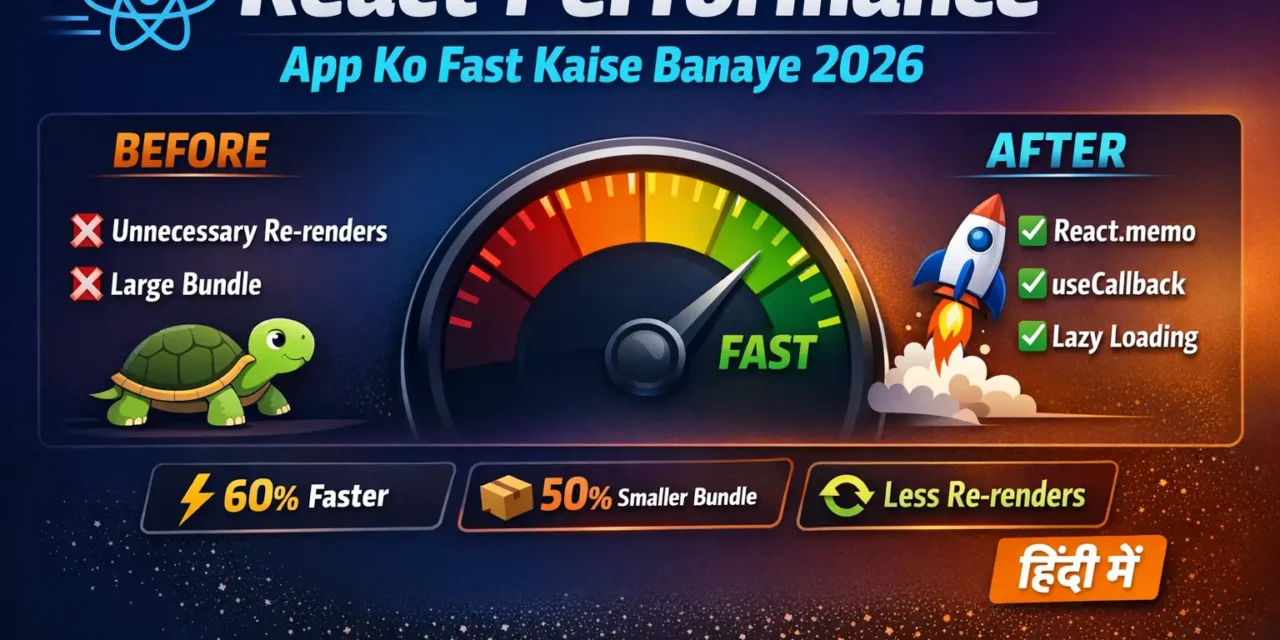
क्या तुमने कभी सोचा है – React app slow kyun ho jati hai? और fast kaise banayein?
Jab app bada hota hai (50+ components), toh performance issues aane lagte hain:
- Slow rendering – UI update mein time lagta hai
- Laggy interactions – button click par delay
- High memory usage – app crash hone lagti hai
React Performance Optimization Hindi में समझना बहुत जरूरी है क्योंकि:
- User experience – slow app = user chala jayega
- SEO ranking – Google fast apps ko prefer karta hai
- Conversion rate – 1 second delay se 20% sales kam
- Interview में 100% performance questions पूछे जाते हैं
Aaj kya seekhoge?
| Topic | Kya Seekhega? |
|---|---|
| Why React re-renders? | Re-render kaise aur kyun hota hai |
| React.memo | Unnecessary re-renders rokna |
| useCallback | Functions ko memoize karna |
| useMemo | Expensive calculations cache karna |
| Lazy Loading | Components ko on-demand load karna |
| Code Splitting | Bundle size chhoti karna |
| Virtualization | Large lists handle karna |
| DevTools Profiler | Performance measure karna |
Kya tumhe pata hai?
React by default fast hai, lekin agar tum optimization ignore karoge, toh 100 components wali app 2-3 seconds lag sakti hai render hone mein!
तो चलिए शुरू करते हैं – React Performance Optimization Hindi सीखने का सफर! 🚀
Table of Contents
1. React Performance Optimization – Introduction
React Performance Optimization Hindi mein hum unnecessary re-renders ko rokna seekhenge.
React Default Behavior:
// Jab bhi parent re-render hota hai, child bhi re-render hota hai
function Parent() {
  const [count, setCount] = useState(0);

  return (
    <div>
      <button onClick={() => setCount(count + 1)}>Count: {count}</button>
      <ExpensiveChild />  {/* ❌ This will re-render every time! */}
    </div>
  );
}

function ExpensiveChild() {
  console.log("ExpensiveChild rendered!"); // Har parent re-render par chalta hai
  return <div>I am expensive!</div>;
}
Problem Visualization:
Parent Component
     │
     │ (state changes)
     ▼
Parent Re-renders
     │
     ├── Child A (re-renders unnecessarily)
     ├── Child B (re-renders unnecessarily)
     └── Child C (re-renders unnecessarily)
Solution Overview:
| Technique | Problem Solves |
|---|---|
| React.memo | Child components ka unnecessary re-render |
| useCallback | Function props ka re-creation rokna |
| useMemo | Expensive calculations repeat hona |
| Lazy Loading | Initial bundle size bada hona |
| Virtualization | 1000+ items ki list slow hona |
2. Why React Re-renders? (Re-render Kaise Hota Hai)
Re-render Triggers:
// 1. State change
const [count, setCount] = useState(0);
setCount(1); // → Component re-renders

// 2. Props change
<Child name={name} /> // name changes → Child re-renders

// 3. Context change
const value = useContext(AppContext); // context changes → Component re-renders

// 4. Parent re-render
// Parent re-renders → All children re-render (by default)
Re-render Flow:
function App() {
  const [searchTerm, setSearchTerm] = useState("");

  return (
    <div>
      <input
        value={searchTerm}
        onChange={(e) => setSearchTerm(e.target.value)} // ← Trigger
      />
      <Header />           {/* Re-renders unnecessarily */}
      <Sidebar />          {/* Re-renders unnecessarily */}
      <SearchResults term={searchTerm} /> {/* Should re-render */}
    </div>
  );
}
React Performance Optimization Hindi mein sabse pehle ye samajhna hai – kya re-render hona chahiye aur kya nahi.
3. React DevTools Profiler – Performance Measure Karna
Installation:
- Chrome Web Store se “React DevTools” install karo
- F12 → Components tab → ⚙️ Settings → “Highlight updates when components render”
Using Profiler:
// Step 1: Open DevTools → Profiler tab
// Step 2: Click record button (circle icon)
// Step 3: Interact with your app
// Step 4: Stop recording

// Profiler shows:
// - Kaunsa component render hua
// - Kitna time laga
// - Kyun render hua (why did this render?)
Why Did You Render? Library:
npm install @welldone-software/why-did-you-render// src/index.js
import React from 'react';
if (process.env.NODE_ENV === 'development') {
const whyDidYouRender = require('@welldone-software/why-did-you-render');
whyDidYouRender(React, {
trackAllPureComponents: true,
trackHooks: true,
logOnDifferentValues: true,
});
}// Component mein enable karna
function ExpensiveComponent() {
// ...
}
ExpensiveComponent.whyDidYouRender = true;4. React.memo – Unnecessary Re-renders रोकना
React.memo functional component ko cache karta hai – agar props same hain, toh re-render nahi hoga.
Without React.memo:
// ❌ Without memo – har parent render par re-render
function Child({ name }) {
  console.log("Child rendered!");
  return <div>Hello, {name}</div>;
}

function Parent() {
  const [count, setCount] = useState(0);
  const [name, setName] = useState("Rahul");

  return (
    <div>
      <button onClick={() => setCount(count + 1)}>Count: {count}</button>
      <button onClick={() => setName("Priya")}>Change Name</button>
      <Child name={name} /> {/* Re-renders when count changes too! */}
    </div>
  );
}
With React.memo:
// ✅ With memo – sirf tab re-render jab props change ho
const Child = React.memo(({ name }) => {
  console.log("Child rendered!");
  return <div>Hello, {name}</div>;
});

function Parent() {
  const [count, setCount] = useState(0);
  const [name, setName] = useState("Rahul");

  return (
    <div>
      <button onClick={() => setCount(count + 1)}>Count: {count}</button>
      {/* Count change hone par Child re-render nahi hoga */}
      <button onClick={() => setName("Priya")}>Change Name</button>
      <Child name={name} /> {/* Sirf name change hone par re-render */}
    </div>
  );
}
Custom Comparison Function:
const Child = React.memo(
  ({ user, onUpdate }) => {
    console.log("Child rendered!");
    return <div>{user.name}</div>;
  },
  (prevProps, nextProps) => {
    // Return true if props are equal (skip re-render)
    // Return false if props are different (re-render)
    return prevProps.user.id === nextProps.user.id;
  }
);
When to Use React.memo:
| Use React.memo | Don’t Use React.memo |
|---|---|
| Component renders frequently | Component renders rarely |
| Component receives same props often | Props change every time |
| Component is expensive to render | Component is very simple |
| Component is pure (same props → same output) | Component has internal state |
5. useCallback – Functions Ko Memoize Karna
useCallback function ko cache karta hai – jab tak dependencies change na ho, same function reference return karta hai।
Problem:
// ❌ Problem – har render par naya function banega
function Parent() {
  const [count, setCount] = useState(0);

  // Har render par naya function! (different reference)
  const handleClick = () => {
    console.log("Clicked!");
  };

  return (
    <div>
      <button onClick={() => setCount(count + 1)}>Count: {count}</button>
      <Child onClick={handleClick} /> {/* Har render par new prop → Child re-renders */}
    </div>
  );
}

const Child = React.memo(({ onClick }) => {
  console.log("Child rendered!");
  return <button onClick={onClick}>Click</button>;
});
Solution with useCallback:
// ✅ Solution – function memoized
function Parent() {
  const [count, setCount] = useState(0);

  // Same function reference until dependencies change
  const handleClick = useCallback(() => {
    console.log("Clicked!");
  }, []); // Empty deps → never changes

  return (
    <div>
      <button onClick={() => setCount(count + 1)}>Count: {count}</button>
      <Child onClick={handleClick} /> {/* Same prop reference → No re-render */}
    </div>
  );
}

const Child = React.memo(({ onClick }) => {
  console.log("Child rendered!");
  return <button onClick={onClick}>Click</button>;
});
useCallback with Dependencies:
function ProductList({ category }) {
  const [products, setProducts] = useState([]);

  // Function depends on category
  const fetchProducts = useCallback(async () => {
    const data = await api.getProducts(category);
    setProducts(data);
  }, [category]); // New function when category changes

  useEffect(() => {
    fetchProducts();
  }, [fetchProducts]); // Effect runs when fetchProducts changes

  return <ProductGrid onLoad={fetchProducts} />;
}
6. useMemo – Expensive Calculations Cache Karna
useMemo expensive calculation ke result ko cache karta hai – jab tak dependencies change na ho, same value return karta hai।
Problem:
// ❌ Problem – har render par expensive calculation
function Dashboard({ orders }) {
  // Har render par 10,000 items filter ho rahe hain!
  const completedOrders = orders.filter(o => o.status === "completed");
  const totalRevenue = orders.reduce((sum, o) => sum + o.amount, 0);

  return (
    <div>
      <p>Total Revenue: {totalRevenue}</p>
      <p>Completed: {completedOrders.length}</p>
    </div>
  );
}
Solution with useMemo:
// ✅ Solution – memoize expensive calculations
function Dashboard({ orders }) {
  // Sirf tab calculate jab orders change ho
  const completedOrders = useMemo(() => {
    console.log("Filtering orders...");
    return orders.filter(o => o.status === "completed");
  }, [orders]);

  const totalRevenue = useMemo(() => {
    console.log("Calculating revenue...");
    return orders.reduce((sum, o) => sum + o.amount, 0);
  }, [orders]);

  return (
    <div>
      <p>Total Revenue: {totalRevenue}</p>
      <p>Completed: {completedOrders.length}</p>
    </div>
  );
}
Real Example – Search Filter:
function ProductCatalog({ products, searchTerm, category, sortBy }) {
  // Multiple filters + sorting – expensive!
  const filteredAndSortedProducts = useMemo(() => {
    console.log("Processing products...");

    let result = [...products];

    // Filter by search term
    if (searchTerm) {
      result = result.filter(p =>
        p.name.toLowerCase().includes(searchTerm.toLowerCase())
      );
    }

    // Filter by category
    if (category) {
      result = result.filter(p => p.category === category);
    }

    // Sort
    if (sortBy === "price") {
      result.sort((a, b) => a.price - b.price);
    } else if (sortBy === "name") {
      result.sort((a, b) => a.name.localeCompare(b.name));
    }

    return result;
  }, [products, searchTerm, category, sortBy]); // Only when these change

  return (
    <div>
      <p>Showing {filteredAndSortedProducts.length} products</p>
      {filteredAndSortedProducts.map(p => (
        <ProductCard key={p.id} product={p} />
      ))}
    </div>
  );
}
7. Lazy Loading – Components On-demand Load Karna
Lazy loading components ko tab load karta hai jab unki zaroorat ho – initial bundle size chhoti ho jati hai।
Without Lazy Loading (All at once):
// ❌ All components load together – slow initial load
import Dashboard from './Dashboard';
import Profile from './Profile';
import Settings from './Settings';
import AdminPanel from './AdminPanel';

function App() {
  return (
    <Routes>
      <Route path="/" element={<Dashboard />} />
      <Route path="/profile" element={<Profile />} />
      <Route path="/settings" element={<Settings />} />
      <Route path="/admin" element={<AdminPanel />} />
    </Routes>
  );
}
With Lazy Loading:
// ✅ Lazy load – sirf required component load hota hai
import { lazy, Suspense } from 'react';

const Dashboard = lazy(() => import('./Dashboard'));
const Profile = lazy(() => import('./Profile'));
const Settings = lazy(() => import('./Settings'));
const AdminPanel = lazy(() => import('./AdminPanel'));

function App() {
  return (
    <Suspense fallback={<div className="loader">Loading...</div>}>
      <Routes>
        <Route path="/" element={<Dashboard />} />
        <Route path="/profile" element={<Profile />} />
        <Route path="/settings" element={<Settings />} />
        <Route path="/admin" element={<AdminPanel />} />
      </Routes>
    </Suspense>
  );
}
Lazy Loading with Named Exports:
// Component file (Dashboard.jsx)
export const Dashboard = () => { /* ... */ };

// Lazy import
const Dashboard = lazy(() => import('./Dashboard').then(module => ({
  default: module.Dashboard
})));
8. Code Splitting – Bundle Size Chhoti Karna
Code splitting bundler (Webpack/Vite) ko batata hai ki code ko multiple chunks mein split kare।
Route-based Code Splitting:
// ✅ Best for most apps
const Home = lazy(() => import('./pages/Home'));
const About = lazy(() => import('./pages/About'));
const Contact = lazy(() => import('./pages/Contact'));
Component-based Code Splitting:
// Heavy component – split karo
const HeavyChart = lazy(() => import('./components/HeavyChart'));

function Dashboard() {
  const [showChart, setShowChart] = useState(false);

  return (
    <div>
      <button onClick={() => setShowChart(true)}>Show Chart</button>
      {showChart && (
        <Suspense fallback={<div>Loading chart...</div>}>
          <HeavyChart />
        </Suspense>
      )}
    </div>
  );
}
Webpack Magic Comments:
// Custom chunk names
const Profile = lazy(() => import(
  /* webpackChunkName: "user-profile" */
  './pages/Profile'
));

// Prefetch (load in idle time)
const AdminPanel = lazy(() => import(
  /* webpackPrefetch: true */
  './pages/AdminPanel'
));

// Preload (load immediately)
const CriticalComponent = lazy(() => import(
  /* webpackPreload: true */
  './components/CriticalComponent'
));
9. Virtualization – Large Lists Handle Karna
Virtualization – sirf visible items render karo, 1000+ items ki list fast ho jati hai।
Problem with Large Lists:
// ❌ Problem – 10,000 items sab render honge
function ProductList({ products }) { // 10,000 products
  return (
    <div>
      {products.map(product => ( // Sab DOM mein add honge!
        <ProductCard key={product.id} product={product} />
      ))}
    </div>
  );
}
Solution with react-window:
npm install react-window// ✅ Solution – sirf visible items render
import { FixedSizeList as List } from 'react-window';
function ProductList({ products }) {
const Row = ({ index, style }) => (
<div style={style}>
<ProductCard product={products[index]} />
</div>
);
return (
<List
height={600} // List container height
itemCount={products.length} // Total items
itemSize={100} // Each item height
width="100%"
>
{Row}
</List>
);
}Variable Height Items:
npm install react-window react-virtualized-auto-sizerimport { VariableSizeList as List } from 'react-window';
import AutoSizer from 'react-virtualized-auto-sizer';
function VariableList({ items }) {
const getItemSize = (index) => {
// Dynamic height based on content
return items[index].content.length > 100 ? 150 : 80;
};
return (
<AutoSizer>
{({ height, width }) => (
<List
height={height}
itemCount={items.length}
itemSize={getItemSize}
width={width}
>
{Row}
</List>
)}
</AutoSizer>
);
}10. Windowing – react-window Library
Installation:
npm install react-window
npm install react-virtualized-auto-sizer # optional
FixedSizeList Example:
import { FixedSizeList as List } from 'react-window';

function LargeList() {
  const items = Array.from({ length: 10000 }, (_, i) => ({
    id: i,
    name: `Item ${i}`,
  }));

  const Row = ({ index, style }) => (
    <div style={{ ...style, borderBottom: '1px solid #ccc', padding: '10px' }}>
      {items[index].name}
    </div>
  );

  return (
    <List
      height={400}
      itemCount={items.length}
      itemSize={50}
      width="100%"
    >
      {Row}
    </List>
  );
}
Grid (Table) with react-window:
import { FixedSizeGrid as Grid } from 'react-window';

function DataGrid() {
  const Cell = ({ columnIndex, rowIndex, style }) => (
    <div style={style}>
      Row {rowIndex}, Col {columnIndex}
    </div>
  );

  return (
    <Grid
      columnCount={10}
      columnWidth={100}
      height={400}
      rowCount={1000}
      rowHeight={35}
      width={1000}
    >
      {Cell}
    </Grid>
  );
}
11. Avoiding Inline Functions and Objects
Problem with Inline Functions:
// ❌ Bad – har render par naya function
function Parent() {
  return (
    <Child onClick={() => console.log("clicked")} /> // New function every time
  );
}

// ✅ Better – memoized function
function Parent() {
  const handleClick = useCallback(() => console.log("clicked"), []);
  return <Child onClick={handleClick} />;
}
Problem with Inline Objects:
// ❌ Bad – har render par naya object
function Parent() {
  return (
    <Child style={{ color: 'red', fontSize: '16px' }} /> // New object every time
  );
}

// ✅ Better – memoized object
function Parent() {
  const childStyle = useMemo(() => ({ color: 'red', fontSize: '16px' }), []);
  return <Child style={childStyle} />;
}

// ✅ Even better – define outside component
const CHILD_STYLE = { color: 'red', fontSize: '16px' };
function Parent() {
  return <Child style={CHILD_STYLE} />; // Same reference always
}
12. Real-world Performance Audit
Performance Checklist:
// 1. ✅ Use React.memo for pure components
const ProductCard = React.memo(({ product }) => { /* ... */ });

// 2. ✅ useCallback for functions passed to memoized children
const handleAddToCart = useCallback((id) => {
  dispatch(addToCart(id));
}, [dispatch]);

// 3. ✅ useMemo for expensive calculations
const filteredProducts = useMemo(() => {
  return products.filter(p => p.price < 100);
}, [products]);

// 4. ✅ Lazy load heavy components
const HeavyChart = lazy(() => import('./HeavyChart'));

// 5. ✅ Virtualize long lists
import { FixedSizeList } from 'react-window';

// 6. ✅ Avoid inline objects/styles
const DEFAULT_STYLE = { padding: 10, margin: 5 };

// 7. ✅ Use production build
// npm run build (not npm start)

// 8. ✅ Bundle analysis
// npm install --save-dev webpack-bundle-analyzer
Bundle Analysis:
# Create bundle analysis
npm run build -- --stats

# Or use cra-bundle-tracker for CRA
npx cra-bundle-tracker
Performance Testing Tools:
| Tool | Purpose |
|---|---|
| Lighthouse | Overall performance score |
| React DevTools Profiler | Component render times |
| Web Vitals | Core Web Vitals (LCP, FID, CLS) |
| Bundle Analyzer | Bundle size breakdown |
13. Common Mistakes + Solutions
Mistake 1: Overusing React.memo
// ❌ Unnecessary – simple component rarely re-renders
const SimpleButton = React.memo(({ onClick, label }) => {
  return <button onClick={onClick}>{label}</button>;
});

// ✅ Better – without memo (cheap to re-render)
const SimpleButton = ({ onClick, label }) => {
  return <button onClick={onClick}>{label}</button>;
};
Mistake 2: Missing dependencies in useCallback/useMemo
// ❌ Stale closure – uses old value
const handleSubmit = useCallback(() => {
  saveData(formData); // formData from closure might be stale
}, []); // Missing formData dependency

// ✅ Correct
const handleSubmit = useCallback(() => {
  saveData(formData);
}, [formData]);
Mistake 3: useMemo for simple values
// ❌ Unnecessary overhead
const sum = useMemo(() => a + b, [a, b]);

// ✅ Direct calculation is fine
const sum = a + b;
Mistake 4: Not using key prop in lists
// ❌ Index as key (causes issues with reordering)
{items.map((item, index) => <li key={index}>{item}</li>)}

// ✅ Unique ID as key
{items.map(item => <li key={item.id}>{item.name}</li>)}
Mistake 5: Development mode in production
# ❌ Running in development on production
npm start

# ✅ Production build
npm run build
serve -s build
14. Quick Cheat Sheet
| Technique | Syntax | Use Case |
|---|---|---|
| React.memo | const Comp = React.memo(Component) | Pure components, frequent renders |
| useCallback | const fn = useCallback(fn, deps) | Functions as props |
| useMemo | const val = useMemo(fn, deps) | Expensive calculations |
| lazy | const Comp = lazy(() => import()) | Code splitting |
| Suspense | <Suspense fallback={...}> | Loading state for lazy |
| react-window | <List itemCount={n} itemSize={h}> | Large lists |
| Profiler | <Profiler onRender={callback}> | Performance measurement |
15. FAQ
Q1: React Performance Optimization Hindi में सबसे important technique kya hai?React.memo + useCallback combo – unnecessary re-renders rokna sabse zyada impact deta hai.
Q2: Kya sab components ko React.memo wrap karna chahiye?
Nahi! Sirf un components ko jo frequently re-render hote hain ya expensive hain। Simple components ke liye overhead hai.
Q3: useCallback vs useMemo – kya antar hai?useCallback function return karta hai, useMemo value return karta hai।
Q4: Kya React.memo deep comparison karta hai?
Nahi – shallow comparison। Nested objects/arrays ke liye custom comparison function chahiye।
Q5: Lazy loading se SEO affect hota hai?
Next.js jaise frameworks mein SSR ke saath lazy loading carefully use karna chahiye। Client-side lazy loading SEO affect nahi karta.
Q6: Virtualization kyun use karein?
1000+ items render karne se DOM bloated ho jata hai – virtualization sirf visible items render karta है।
Q7: Production build kyun important hai?
Development build mein extra checks, warnings, aur debugging tools hote hain jo app slow karte hain।
Q8: Kya key prop index use kar sakte hain?
Nahi agar list reorder ho sakti hai। Index use karne se reorder par bugs aate hain।
Q9: React 19 mein performance features kya naye hain?
React 19 mein compiler optimizations (React Forget) aayenge – automatic memoization।
Q10: App slow hai – pehle kya check karein?
React DevTools Profiler se dekho kaunsa component re-render ho raha hai। Phir unnecessary re-renders rokne par focus karo।
16. Conclusion
बहुत बढ़िया दोस्तों! आज हमने React Performance Optimization Hindi को पूरी detail में समझा।
Quick Recap:
| Technique | Key Takeaway |
|---|---|
| React.memo | Unnecessary child re-renders rokna |
| useCallback | Functions memoize karna |
| useMemo | Expensive calculations cache |
| Lazy Loading | On-demand component loading |
| Virtualization | Large lists efficient render |
| Production Build | 70% faster than development |
Mera personal experience:
जब मैंने पहली बार performance optimization सीखा, तो React DevTools Profiler use karke dekha – 50 components mein se 30 unnecessary re-render ho rahe the! React.memo lagane se app 60% faster ho gayi।
Tum bhi ye steps follow karo:
- ✅ React DevTools Profiler se analyze karo
- ✅ Unnecessary re-renders identify karo
- ✅ React.memo + useCallback lagao
- ✅ Bundle size check karo
- ✅ Lazy loading implement karo
अब तुम्हारी बारी है!
नीचे comment में बताओ:
- तुम्हारी app में सबसे बड़ी performance issue kya hai?
- क्या तुमने कभी React.memo use kiya hai?
- अगला topic क्या चाहिए? (Next.js? TypeScript with React? Testing?)
The Easy Master पर बने रहो। Happy Optimizing! ⚛️🚀
Resources
- React DevTools Profiler Docs
- react-window Library
- Web Vitals – Core Web Vitals Guide
- Why Did You Render – Debugging Tool
Additional Resources
- Master ES6: A Complete Feature Guide with Examples
- Top 10 React Libraries and Tools Every Developer Must Know in 2025
- Top 10 Free APIs for Practice in 2026
- JavaScript Deep Dive 2026: Closures, Promises & Event Loop
- TypeScript Modules Export Import Best Practices – समझे आसान भाषा में 2026
- React.js Kya Hai? JSX aur Components Samjhe – Beginner Guide 2026
- React Props and State Data Flow Hindi – समझे आसान भाषा में 2026
- React Router v6 – Multi-Page App Banaye (Routing Guide) 2026
- Advanced React Hooks – useContext and useReducer Samjhe 2026
- Redux Toolkit Simplified – State Management Aasaan Tarika 2026
- React API Integration Made Easy with Fetch and Axios