नमस्ते दोस्तों! 🙏
स्वागत है The Easy Master पर!
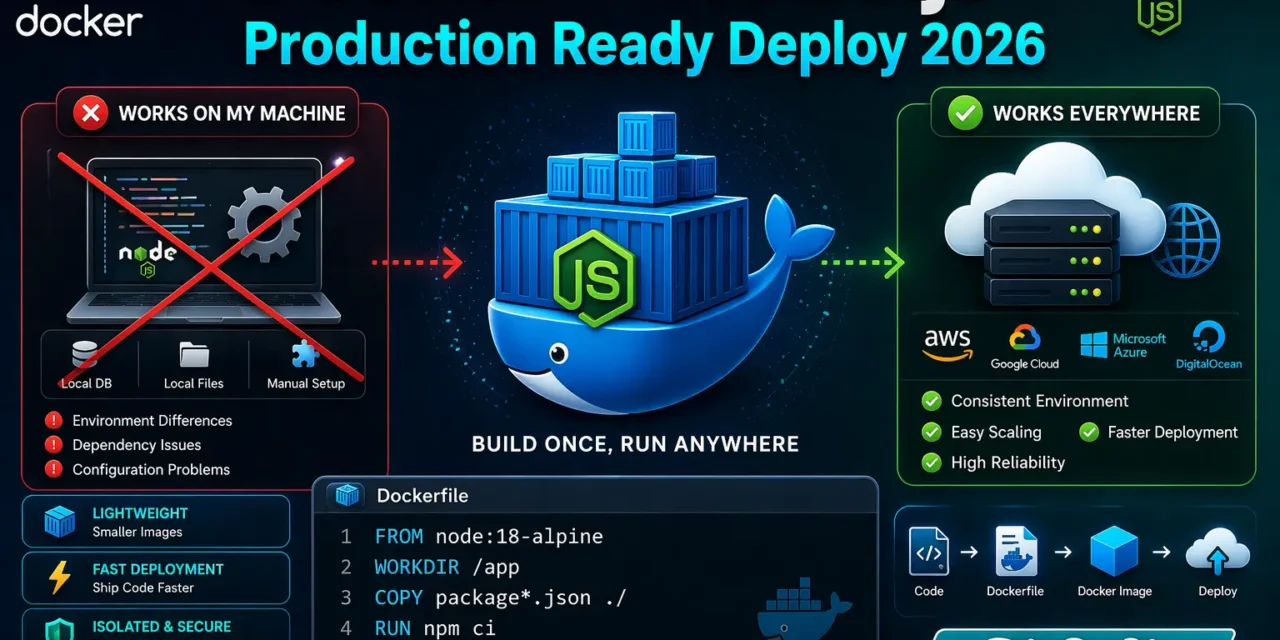
क्या तुमने कभी सोचा है – “Mere system par chal raha hai, production mein kyun nahi chal raha?”
यह डेवलपमेंट का सबसे बड़ा सिरदर्द है। Docker इस problem को solve करता है – एक ही environment development, testing, aur production mein।
Docker Node.js deploy Hindi में समझना बहुत जरूरी है क्योंकि:
- “Works on my machine” problem solve होती है
- Every company uses Docker for deployment
- Consistent environment – same everywhere
- Fast scaling – Docker + Kubernetes = 🚀
- Interview mein pakka Docker questions puche jayenge
Aaj kya seekhoge?
| Topic | Kya Seekhega? |
|---|---|
| Docker Kya Hai? | Containers vs Virtual Machines |
| Dockerfile | Node.js app ka blueprint |
| Docker Compose | Multi-container apps |
| Multi-stage Builds | Production-ready images |
| Environment Variables | Config management |
| Docker Registry | Image push/pull |
| Deployment | AWS, DigitalOcean, Render |
Kya tumhe pata hai?
Docker container sirf seconds में start हो जाता है, जबकि Virtual Machine को minutes lagte हैं!
तो चलिए शुरू करते हैं – Docker Node.js deploy Hindi सीखने का सफर! 🚀🐳
Table of Contents
1. Docker Kya Hai? – Introduction
Docker एक containerization platform है जो applications को containers mein package karta है – code, runtime, system tools, libraries – सब साथ।
Real-world Analogy:
📦 Shipping Container Analogy:

बिना Docker (Traditional):
- अलग-अलग shapes के boxes
- अलग-अलग तरीके से pack
- Transport में problem

Docker के साथ:
- Standard containers
- Same packing everywhere
- Train, ship, truck – सब same way
Docker Container Flow:
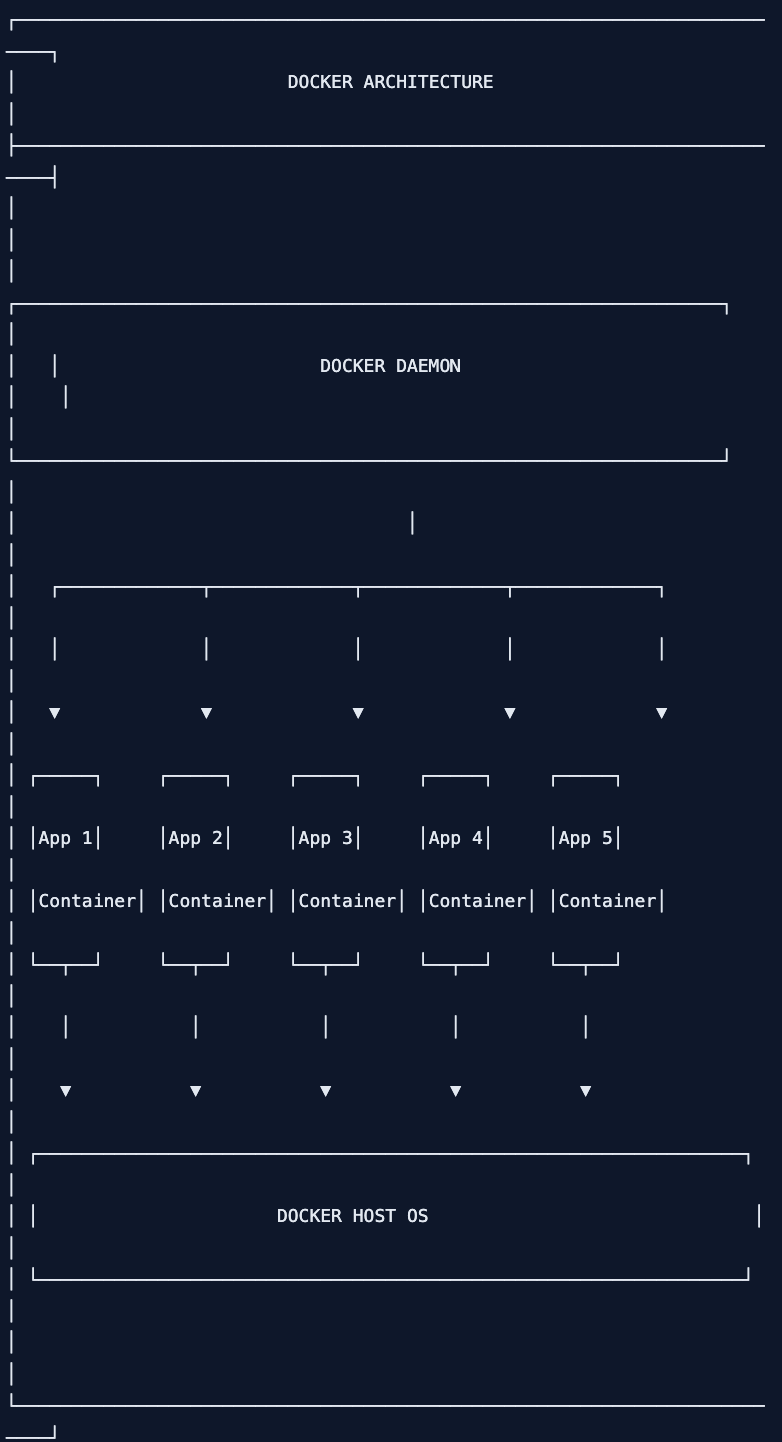
Docker Node.js deploy Hindi में हम production-ready Node.js app containerize karna seekhenge।
2. Docker vs Virtual Machines – Comparison
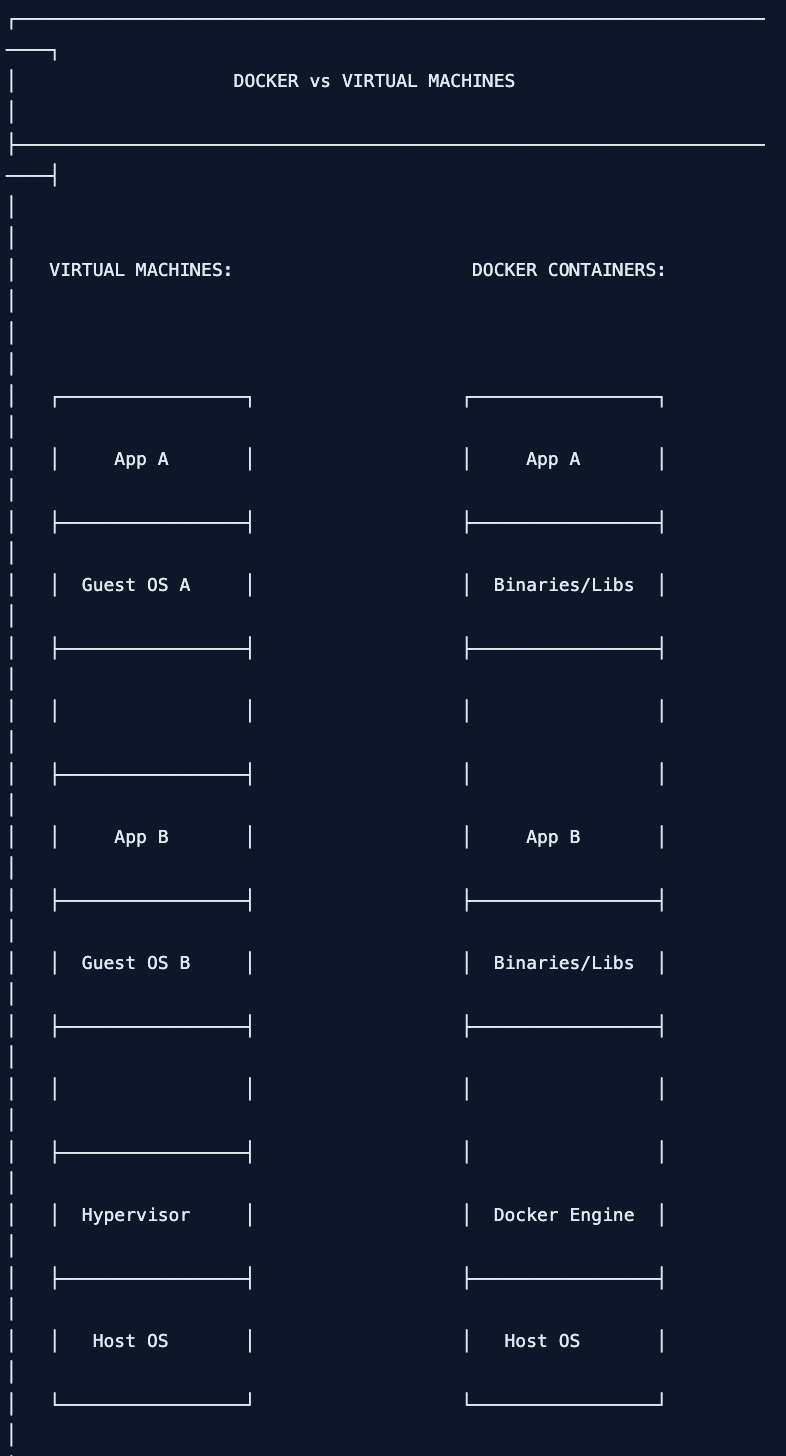
Comparison Table:
| Feature | Virtual Machines | Docker Containers |
|---|---|---|
| Startup Time | Minutes | Seconds |
| Size | GBs | MBs |
| Resource Usage | Heavy | Lightweight |
| OS Isolation | Full OS per VM | Shared OS kernel |
| Performance | Near-native | Native |
| Portability | Moderate | Excellent |
| Scalability | Slow | Fast |
3. Installation – Docker Setup
Install Docker:
Windows/Mac:
- Download Docker Desktop from docker.com
- Install and restart
Linux (Ubuntu/Debian):
# Update packages
sudo apt update

# Install prerequisites
sudo apt install apt-transport-https ca-certificates curl software-properties-common

# Add Docker's GPG key
curl -fsSL https://download.docker.com/linux/ubuntu/gpg | sudo gpg --dearmor -o /usr/share/keyrings/docker-archive-keyring.gpg

# Add Docker repository
echo "deb [arch=$(dpkg --print-architecture) signed-by=/usr/share/keyrings/docker-archive-keyring.gpg] https://download.docker.com/linux/ubuntu $(lsb_release -cs) stable" | sudo tee /etc/apt/sources.list.d/docker.list > /dev/null

# Install Docker
sudo apt update
sudo apt install docker-ce

# Verify installation
docker --version
Verify Installation:
# Check Docker version
docker --version
# Output: Docker version 26.0.0

# Test Docker
docker run hello-world

# Check Docker Compose
docker-compose --version
4. Dockerfile – Node.js App Ka Blueprint
Dockerfile instructions का set है जो Docker image build करने का तरीका बताता है।
Sample Node.js App:
// app.js
const express = require('express');
const app = express();
const PORT = process.env.PORT || 3000;

app.get('/', (req, res) => {
  res.json({
    message: 'Hello from Docker!',
    timestamp: new Date().toISOString(),
    environment: process.env.NODE_ENV || 'development'
  });
});

app.get('/health', (req, res) => {
  res.status(200).json({ status: 'OK' });
});

app.listen(PORT, () => {
  console.log(`Server running on port ${PORT}`);
});// package.json
{
"name": "docker-node-app",
"version": "1.0.0",
"main": "app.js",
"scripts": {
"start": "node app.js",
"dev": "nodemon app.js"
},
"dependencies": {
"express": "^4.18.2"
},
"devDependencies": {
"nodemon": "^3.0.0"
}
}Basic Dockerfile:
# Dockerfile (Basic)

# Step 1: Base image
FROM node:18-alpine

# Step 2: Set working directory
WORKDIR /app

# Step 3: Copy package files
COPY package*.json ./

# Step 4: Install dependencies
RUN npm ci --only=production

# Step 5: Copy source code
COPY . .

# Step 6: Create non-root user
RUN addgroup -g 1001 -S nodejs && \
    adduser -S nodejs -u 1001 && \
    chown -R nodejs:nodejs /app

USER nodejs

# Step 7: Expose port
EXPOSE 3000

# Step 8: Start command
CMD ["node", "app.js"]
Dockerfile Instructions Explained:
| Instruction | Purpose |
|---|---|
FROM | Base image (OS + Node.js) |
WORKDIR | Working directory inside container |
COPY | Copy files from host to container |
RUN | Execute command during build |
ADD | Copy with extra features (URL, tar) |
ENV | Set environment variables |
EXPOSE | Document which port container listens on |
USER | Switch to non-root user |
CMD | Default command when container starts |
ENTRYPOINT | Main command (cannot be overridden) |
5. Build Image – docker build Command
Build Docker Image:
# Build image with tag
docker build -t my-node-app .

# Build with specific Dockerfile
docker build -f Dockerfile.prod -t my-node-app:prod .

# Build with no cache
docker build --no-cache -t my-node-app .

# Build for production (smaller image)
docker build --target production -t my-node-app:prod .
Docker Image
# List images
docker images

# List images (format)
docker images --format "table {{.Repository}}\t{{.Tag}}\t{{.Size}}"

# Remove image
docker rmi my-node-app

# Remove unused images
docker image prune

# Inspect image
docker inspect my-node-app

# Show image history
docker history my-node-app
Image Size Optimization:
# Optimized Dockerfile for Node.js

# Multi-stage build
FROM node:18-alpine AS builder

WORKDIR /app
COPY package*.json ./
RUN npm ci

# Production stage
FROM node:18-alpine

# Install dumb-init for proper signal handling
RUN apk add --no-cache dumb-init

WORKDIR /app

# Copy only production dependencies
COPY --from=builder /app/node_modules ./node_modules

# Copy source
COPY . .

# Create non-root user
RUN addgroup -g 1001 -S nodejs && \
    adduser -S nodejs -u 1001 && \
    chown -R nodejs:nodejs /app

USER nodejs

EXPOSE 3000

# Use dumb-init to handle signals properly
CMD ["dumb-init", "node", "app.js"]
6. Run Container – docker run Command
Basic Container Run:
# Run container
docker run -d -p 3000:3000 --name my-app my-node-app

# Run with environment variables
docker run -d -p 3000:3000 -e NODE_ENV=production -e PORT=3000 --name my-app my-node-app

# Run with volume mount (for development)
docker run -d -p 3000:3000 -v $(pwd):/app -v /app/node_modules --name my-app-dev my-node-app

# Run with resource limits
docker run -d -p 3000:3000 --memory="512m" --cpus="0.5" --name my-app my-node-app
Docker Container Commands:
# List running containers
docker ps

# List all containers (including stopped)
docker ps -a

# Stop container
docker stop my-app

# Start container
docker start my-app

# Restart container
docker restart my-app

# Remove container
docker rm my-app

# Remove container forcefully
docker rm -f my-app

# View logs
docker logs my-app

# Follow logs
docker logs -f my-app

# Execute command inside container
docker exec -it my-app /bin/sh

# Copy file from container
docker cp my-app:/app/logs.txt ./logs.txt

# Copy file to container
docker cp ./config.json my-app:/app/config.json
Container Health Check:
# Add health check to Dockerfile
HEALTHCHECK --interval=30s --timeout=3s --start-period=5s --retries=3 \
CMD node healthcheck.js || exit 1// healthcheck.js
const http = require('http');
const options = {
host: 'localhost',
port: 3000,
path: '/health',
timeout: 2000
};
const request = http.get(options, (res) => {
if (res.statusCode === 200) {
process.exit(0);
} else {
process.exit(1);
}
});
request.on('error', () => {
process.exit(1);
});7. Docker Compose – Multi-container Apps
Docker Compose multiple containers को एक साथ manage करने के लिए।
docker-compose.yml:
# docker-compose.yml
version: '3.8'

services:
  # Node.js App
  app:
    build: .
    container_name: node-app
    restart: unless-stopped
    ports:
      - "3000:3000"
    environment:
      - NODE_ENV=production
      - PORT=3000
      - DB_HOST=postgres
      - REDIS_HOST=redis
    depends_on:
      - postgres
      - redis
    volumes:
      - ./logs:/app/logs
    networks:
      - app-network

  # PostgreSQL Database
  postgres:
    image: postgres:15-alpine
    container_name: postgres-db
    restart: unless-stopped
    environment:
      - POSTGRES_USER=myuser
      - POSTGRES_PASSWORD=mypassword
      - POSTGRES_DB=mydb
    volumes:
      - postgres-data:/var/lib/postgresql/data
    ports:
      - "5432:5432"
    networks:
      - app-network

  # Redis Cache
  redis:
    image: redis:7-alpine
    container_name: redis-cache
    restart: unless-stopped
    ports:
      - "6379:6379"
    volumes:
      - redis-data:/data
    networks:
      - app-network

  # Nginx (Reverse Proxy)
  nginx:
    image: nginx:alpine
    container_name: nginx-proxy
    restart: unless-stopped
    ports:
      - "80:80"
      - "443:443"
    volumes:
      - ./nginx.conf:/etc/nginx/nginx.conf:ro
      - ./ssl:/etc/nginx/ssl:ro
    depends_on:
      - app
    networks:
      - app-network

networks:
  app-network:
    driver: bridge

volumes:
  postgres-data:
  redis-data:
Docker Compose Commands:
# Start all services
docker-compose up -d

# Build images and start
docker-compose up -d --build

# Start specific service
docker-compose up -d app

# View logs
docker-compose logs -f

# View logs for specific service
docker-compose logs -f app

# Stop all services
docker-compose down

# Stop and remove volumes
docker-compose down -v

# Restart service
docker-compose restart app

# Scale service
docker-compose up -d --scale app=3

# Execute command
docker-compose exec app node scripts/migrate.js

# List services
docker-compose ps
Development Docker Compose:
# docker-compose.dev.yml
version: '3.8'

services:
  app:
    build:
      context: .
      target: development
    container_name: node-app-dev
    ports:
      - "3000:3000"
      - "9229:9229"  # Debug port
    environment:
      - NODE_ENV=development
    volumes:
      - .:/app
      - /app/node_modules
    command: npm run dev
8. Multi-stage Builds – Production Ready Images
Multi-stage builds smaller production images banate hain।
Complete Production Dockerfile:
# Dockerfile.prod

# ============ STAGE 1: Build ============
FROM node:18-alpine AS builder

WORKDIR /app

# Copy package files
COPY package*.json ./
COPY yarn.lock ./

# Install all dependencies (including dev)
RUN npm ci

# Copy source code
COPY . .

# Build TypeScript (if using TS)
RUN npm run build

# Prune dev dependencies
RUN npm prune --production

# ============ STAGE 2: Production ============
FROM node:18-alpine AS production

# Install dumb-init and tini for signal handling
RUN apk add --no-cache dumb-init

# Create app directory
WORKDIR /app

# Create non-root user
RUN addgroup -g 1001 -S nodejs && \
    adduser -S nodejs -u 1001 && \
    chown -R nodejs:nodejs /app

# Copy from builder stage
COPY --from=builder --chown=nodejs:nodejs /app/node_modules ./node_modules
COPY --from=builder --chown=nodejs:nodejs /app/dist ./dist
COPY --from=builder --chown=nodejs:nodejs /app/package.json ./

# Switch to non-root user
USER nodejs

# Expose port
EXPOSE 3000

# Health check
HEALTHCHECK --interval=30s --timeout=3s --start-period=5s --retries=3 \
  CMD node -e "require('http').get('http://localhost:3000/health', (r) => {process.exit(r.statusCode === 200 ? 0 : 1)})"

# Start application
CMD ["dumb-init", "node", "dist/app.js"]
Build Production Image:
# Build using production Dockerfile
docker build -f Dockerfile.prod -t my-node-app:latest .

# Tag for registry
docker tag my-node-app:latest myregistry.com/my-node-app:v1.0.0

# Save image to file
docker save -o my-node-app.tar my-node-app:latest

# Load image from file
docker load -i my-node-app.tar
9. Environment Variables – Config Management
Environment Files:
# .env (development)
NODE_ENV=development
PORT=3000
DB_HOST=localhost
DB_PORT=5432
DB_NAME=mydb
DB_USER=myuser
DB_PASSWORD=mypassword

# .env.production (production)
NODE_ENV=production
PORT=3000
DB_HOST=postgres
DB_PORT=5432
DB_NAME=prod_db
DB_USER=prod_user
DB_PASSWORD=secure_password
Using .env in Docker:
# Pass environment file
docker run --env-file .env.production -p 3000:3000 my-node-app

# Pass individual variables
docker run -e NODE_ENV=production -e PORT=3000 -p 3000:3000 my-node-app
Docker Compose with Environment:
# docker-compose.yml
version: '3.8'

services:
  app:
    build: .
    env_file:
      - .env.production
    environment:
      - NODE_ENV=${NODE_ENV}
      - PORT=${PORT}
    ports:
      - "${PORT}:${PORT}"
.dockerignore File:
# .dockerignore
node_modules
npm-debug.log
.git
.gitignore
.env
.env.local
.env.*.local
Dockerfile
.dockerignore
README.md
.gitlab-ci.yml
.github
.vscode
.idea
coverage
.nyc_output
*.log
.DS_Store
10. Docker Registry – Push/Pull Images
Push to Docker Hub:
# Login to Docker Hub
docker login

# Tag image
docker tag my-node-app:latest username/my-node-app:v1.0.0

# Push to registry
docker push username/my-node-app:v1.0.0

# Push latest tag
docker push username/my-node-app:latest
Push to Private Registry:
# AWS ECR
aws ecr get-login-password --region us-east-1 | docker login --username AWS --password-stdin <account-id>.dkr.ecr.us-east-1.amazonaws.com
docker tag my-node-app:latest <account-id>.dkr.ecr.us-east-1.amazonaws.com/my-node-app:latest
docker push <account-id>.dkr.ecr.us-east-1.amazonaws.com/my-node-app:latest

# Google Container Registry
gcloud auth configure-docker
docker tag my-node-app:latest gcr.io/my-project/my-node-app:latest
docker push gcr.io/my-project/my-node-app:latest

# GitHub Container Registry
echo $GITHUB_TOKEN | docker login ghcr.io -u username --password-stdin
docker tag my-node-app:latest ghcr.io/username/my-node-app:latest
docker push ghcr.io/username/my-node-app:latest
Pull from Registry:
# Pull from Docker Hub
docker pull username/my-node-app:latest

# Pull from private registry
docker pull <account-id>.dkr.ecr.us-east-1.amazonaws.com/my-node-app:latest
11. Production Deployment – AWS, DigitalOcean, Render
Deploy to AWS ECS (Elastic Container Service):
# 1. Create ECR repository
aws ecr create-repository --repository-name my-node-app

# 2. Push image to ECR
docker tag my-node-app:latest <account-id>.dkr.ecr.us-east-1.amazonaws.com/my-node-app:latest
docker push <account-id>.dkr.ecr.us-east-1.amazonaws.com/my-node-app:latest

# 3. Create ECS task definition (task-definition.json)// task-definition.json
{
"family": "my-node-app",
"taskRoleArn": "arn:aws:iam::account-id:role/ecsTaskRole",
"executionRoleArn": "arn:aws:iam::account-id:role/ecsExecutionRole",
"networkMode": "awsvpc",
"containerDefinitions": [
{
"name": "my-node-app",
"image": "<account-id>.dkr.ecr.us-east-1.amazonaws.com/my-node-app:latest",
"memory": 512,
"cpu": 256,
"essential": true,
"portMappings": [
{
"containerPort": 3000,
"hostPort": 3000,
"protocol": "tcp"
}
],
"environment": [
{
"name": "NODE_ENV",
"value": "production"
}
],
"logConfiguration": {
"logDriver": "awslogs",
"options": {
"awslogs-group": "/ecs/my-node-app",
"awslogs-region": "us-east-1",
"awslogs-stream-prefix": "ecs"
}
}
}
],
"requiresCompatibilities": ["FARGATE"],
"cpu": "256",
"memory": "512"
}Deploy to DigitalOcean App Platform:
# .do/app.yaml
name: my-node-app
region: blr
services:
  - name: web
    github:
      branch: main
      repo: username/my-node-app
    build_command: docker build -t my-node-app .
    run_command: docker run -p 3000:3000 my-node-app
    http_port: 3000
    instance_count: 2
    instance_size_slug: basic-xxs
    envs:
      - key: NODE_ENV
        value: production
      - key: PORT
        value: "3000"
Deploy to Render:
# render.yaml
services:
  - type: web
    name: my-node-app
    runtime: image
    repo: https://github.com/username/my-node-app
    dockerfilePath: ./Dockerfile.prod
    envVars:
      - key: NODE_ENV
        value: production
      - key: PORT
        value: 3000
    healthCheckPath: /health
    autoDeploy: true
    numInstances: 2
Deploy with Docker Swarm:
# Initialize swarm
docker swarm init

# Deploy stack
docker stack deploy -c docker-compose.prod.yml my-app

# List services
docker service ls

# Scale service
docker service scale my-app_app=5

# Update service
docker service update --image my-node-app:v2.0.0 my-app_app

# Remove stack
docker stack rm my-app
12. Common Mistakes + Solutions
Mistake 1: Running as root
# ❌ Running as root (security risk)
USER root
CMD ["node", "app.js"]

# ✅ Create non-root user
RUN addgroup -g 1001 -S nodejs && \
    adduser -S nodejs -u 1001
USER nodejs
CMD ["node", "app.js"]
Mistake 2: Not using .dockerignore
# ❌ Sending large node_modules to Docker daemon
COPY . .

# ✅ Use .dockerignore to exclude node_modules
# .dockerignore file contains: node_modules
Mistake 3: Installing dev dependencies in production
# ❌ Installs all dependencies
RUN npm install

# ✅ Install only production dependencies
RUN npm ci --only=production

# OR use multi-stage build
Mistake 4: Hardcoding environment variables
# ❌ Hardcoded in Dockerfile
ENV DB_HOST=localhost

# ✅ Pass at runtime
docker run -e DB_HOST=postgres my-app
Mistake 5: Not handling signals properly
// ❌ Node.js doesn't handle SIGTERM properly
process.on('SIGTERM', () => {
  console.log('Received SIGTERM, closing server...');
  server.close(() => {
    console.log('Server closed');
    process.exit(0);
  });
});
13. Quick Cheat Sheet
Docker Commands:
| Command | Purpose |
|---|---|
docker build -t name . | Build image |
docker run -d -p 3000:3000 name | Run container |
docker ps | List containers |
docker stop id | Stop container |
docker rm id | Remove container |
docker rmi name | Remove image |
docker logs -f id | View logs |
docker exec -it id sh | Enter container |
docker-compose up -d | Start services |
docker-compose down | Stop services |
Dockerfile Instructions:
| Instruction | Example |
|---|---|
FROM | FROM node:18-alpine |
WORKDIR | WORKDIR /app |
COPY | COPY package*.json ./ |
RUN | RUN npm ci |
ENV | ENV NODE_ENV=production |
EXPOSE | EXPOSE 3000 |
USER | USER nodejs |
CMD | CMD ["node", "app.js"] |
14. FAQ
Q1: Docker Node.js deploy Hindi में सबसे important command kya hai?docker build aur docker run – pehle image build karo, phir container run karo।
Q2: Docker container vs image – kya antar hai?
Image – blueprint (read-only), Container – running instance of image (read-write)।
Q3: Multi-stage build kyun use karein?
Production images ko small banane के लिए। Dev tools aur source code final image mein nahi aate।
Q4: Docker Compose kyun chahiye?
Multiple containers (app, database, redis, nginx) ko एक साथ manage करने के लिए।
Q5: Non-root user kyun use karein?
Security – agar container compromise ho, तो attacker ko root access nahi milega।
Q6: .dockerignore kyun use karein?
node_modules, .git, logs – ye files image mein copy nahi honi चाहिए। Build fast होता है, image size chhoti होती है।
Q7: Production mein container restart kaise karein?--restart unless-stopped flag use karo। Docker Compose mein restart: unless-stopped।
Q8: Logs kaise handle karein?
Container logs stdout/stderr mein bhejo। Docker logs collect karega। Production में ELK stack या Datadog use करो।
Q9: Secrets kaise handle karein?
Docker secrets (Swarm) या environment variables। Production में AWS Secrets Manager या HashiCorp Vault।
Q10: Docker vs Kubernetes – kya use karein?
Docker – single host, development, small apps। Kubernetes – multi-host, orchestration, large scale production।
15. Conclusion
बहुत बढ़िया दोस्तों! आज हमने Docker Node.js deploy Hindi को पूरी detail में समझा।
Quick Recap:
| Concept | Key Takeaway |
|---|---|
| Docker | Containerization platform |
| Dockerfile | Image ka blueprint |
| Image | Read-only template |
| Container | Running instance |
| Docker Compose | Multi-container apps |
| Multi-stage Build | Smaller production images |
Mera personal experience:
Docker seekhne se pehले “works on my machine” problem bohot frustating thi। Docker ने वो problem permanently solve kar di। अब development, testing, production – same container everywhere!
Tum bhi ye steps follow karo:
- ✅ Docker install karo
- ✅ Simple Node.js app ka Dockerfile likho
- ✅ Image build aur container run karo
- ✅ Docker Compose se database add karo
- ✅ Production deployment karo
अब तुम्हारी बारी है!
नीचे comment में बताओ:
- तुम Docker use karoge production में?
- कौन सा deployment platform use karoge?
- अगला topic क्या चाहिए? (Kubernetes? CI/CD? Monitoring?)
The Easy Master पर बने रहो। Happy Dockerizing! 🐳🚀
Resources
Additional Resources
- React.js Kya Hai? JSX aur Components Samjhe – Beginner Guide 2026
- React Props and State Data Flow Hindi – समझे आसान भाषा में 2026
- React Router v6 – Multi-Page App Banaye (Routing Guide) 2026
- Advanced React Hooks – useContext and useReducer Samjhe 2026
- Redux Toolkit Simplified – State Management Aasaan Tarika 2026
- React API Integration Made Easy with Fetch and Axios
- React Performance Optimization – App Ko Fast कैसे बनाएं 2026
- React 19 New Features – AI Integration with React (2026)
- Node.js क्या है? 2026 में अपना पहला Backend Server बनाएँ
- NPM Packages कैसे इंस्टॉल करें? Modules (ESM vs CommonJS) 2026
- Express.js Tutorial – REST API Routing और Middleware समझे 2026
- Prisma ORM MongoDB से Database Connect कैसे करें – Easy Tutorial Hindi
- JWT Authentication Node.js – Secure Login System बनाए 2026
- WebSockets Node.js – Live Chat App कैसे बनाएं (Socket.io)
- Async Await vs Promises – Node.js में Async Code कैसे सीखें?
- Microservices Architecture node.js आसान हिंदी Explanation 2026